
AI Image Enhancement: connect Replicate, pick a model, and test images
Learn how to add your Replicate API key, choose an AI model and prompt, test an image, and turn on enhancement in Flow Lister.
On this page
AI Image Enhancement edits your product photos with AI before they're listed, for example to clean up the background or place the product in a scene. It runs on your own Replicate account. Replicate is an outside AI service, and it bills you for each image.
Key points
- Your own key: You need a Replicate account and API key. DropFlowLister doesn't include Replicate usage.
- Billed by Replicate: Each enhanced image costs the model's per-image price, charged by Replicate. DropFlowLister doesn't charge credits for image enhancement.
- Key stays in your browser: Your API key is saved in your browser. Images are sent from your browser to Replicate.
- Works with both Flow Listers: Turn it on in the eBay or Poshmark Flow Lister.
- Safe fallback: If enhancement fails, Flow Lister uses the original images.
Before you start
- Create an account at Replicate.com and set up billing there.
- Copy an API token from the Replicate dashboard (it starts with
r8_). - Have a sample product photo ready to test (PNG, JPG, or WEBP, up to 10 MB).
How to open the configuration page
To open it:
- Open Flow Lister (eBay or Poshmark).
- Find AI Image Enhancement.
- Click Configure.
The AI Image Enhancement Configuration page opens.
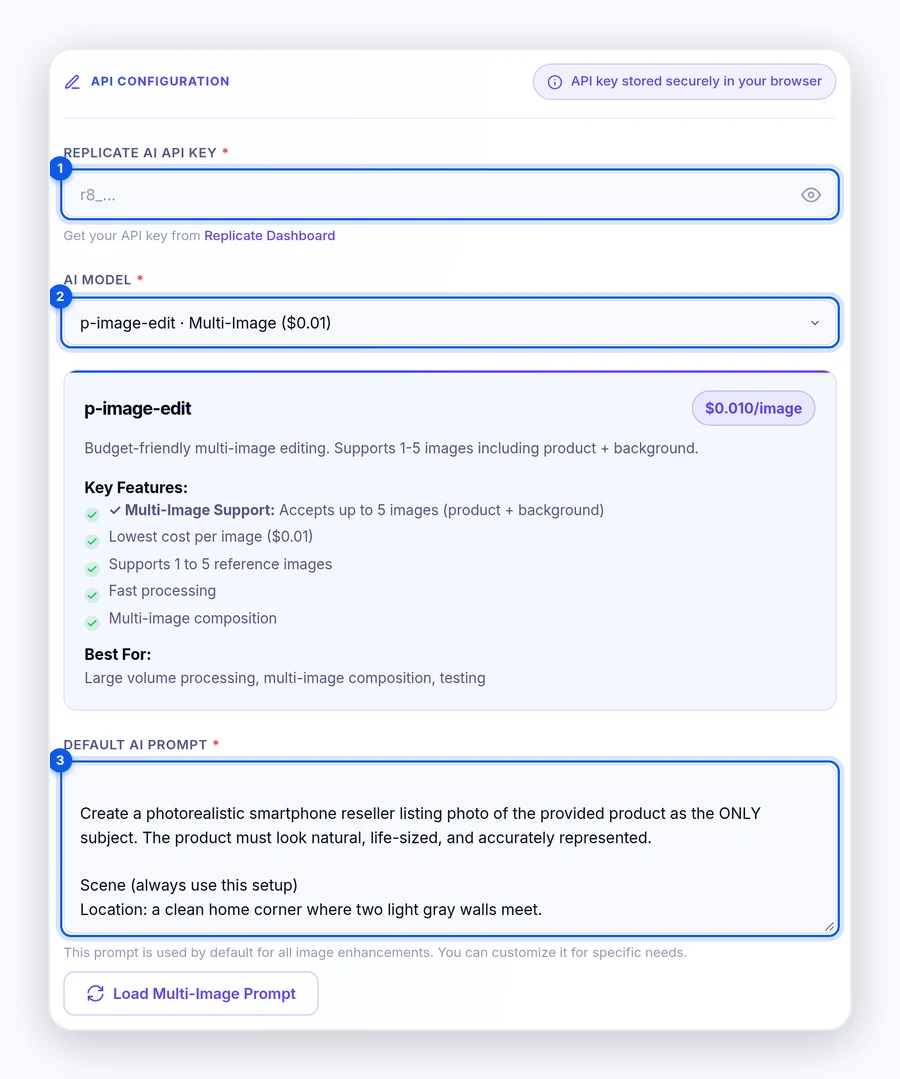
How to set up AI Image Enhancement
To set it up:
- Paste your key into Replicate AI API Key. Click the eye icon to show or hide it.
- Pick a model in AI Model. The Model Details box shows its price and strengths.
- Type a Default AI Prompt, or click Load Poshmark Optimized Prompt to start from the built-in prompt.
- Click Save Configuration.
- Click Test API Connection to check your key.
The Configuration Summary shows Status as configured when the key, model, and prompt are saved.
AI models
These are the models in the menu. Prices are Replicate's prices per image as shown in DropFlowLister, and Replicate can change them.
| Model | Price per image | Good for |
|---|---|---|
| p-image-edit · Multi-Image | $0.01 | Lowest cost. Supports 1 to 5 reference images. |
| Nano Banana · Multi-Image | $0.039 | Several input images, fast processing. |
| FLUX Kontext Image Pro | $0.04 | Lighting and shadow blending that keeps the product's shape. |
| FLUX Kontext Pro | $0.04 | A balance of quality and cost for most listings. |
| FLUX Kontext Max | $0.08 | Highest detail for premium products. |
| Qwen Image Edit 2511 | $0.03 | Good value for single-image edits. |
How to test an image
To test:
- Under Test with Sample Image (Optional), upload a product photo in Image 1: Product Image (Required), or paste an image URL.
- If you like, add a background in Image 2: Desired Background (Optional).
- Click Test Image Enhancement.
- Wait 30–60 seconds.
- Compare Original Image and AI Enhanced in Test Results. The model, processing time, and cost are shown too.
Important: Tests use your Replicate account, so each test image is billed by Replicate.
How to turn on enhancement in Flow Lister
To turn it on:
- Click Back to Bulk Lister.
- Turn on AI Image Enhancement.
- Set how many images per product to enhance (1–10). In the eBay Flow Lister it's Images to Enhance. In the Poshmark Flow Lister it's Images.
- If you like, click Upload Background (eBay) or Upload (Poshmark) to add a background image. Click Clear to remove it.
- Start your run as usual.
Each product's thread shows an AI Enhance step while it runs.
Tips and limits
- Watch your cost. The cost per product is the model price times the number of images you enhance. For example, 3 images with FLUX Kontext Pro cost about $0.12 per product at Replicate's listed price.
- Start with 1 image. Enhance only the main image first, then add more if it helps.
- Expect slower runs. Each image can take 15–60 seconds, depending on the model.
- Check marketplace photo rules. Edited images must still show the real product. Each marketplace sets its own image rules.
Tip: Test your prompt on 2–3 different products before you use it in a big run.
Related articles
Still stuck? Chat with us.
See AI Image Enhancement: troubleshooting, or email contact@dropflowlister.com with a screenshot of the message.