
Flow Lister for eBay: set up, bulk list, and track results
Learn how to set up a store, paste supplier links, choose your settings, and bulk list products to eBay.
On this page
Flow Lister is the bulk listing tool in DropFlowLister. You paste product links from a supplier, and Flow Lister builds and submits a marketplace listing for each one. eBay is one of the marketplaces it lists to today. This article covers setup, every setting, and how to read your results.
Key points
- Suppliers: You can paste product links from Amazon, AliExpress, and Walmart, one per line.
- What it does for each link: It reads the supplier page, checks your filters, can rewrite the title and description with AI, builds your images from a template, and then fills and submits the eBay listing form.
- Credits: Each listing uses 1 credit, with or without AI Title & Description Optimization. Products already listed for the store are removed before the run and cost 0 credits.
- Drafts are refunded: If eBay saves a listing as a draft because item specifics are missing, the credit for that product is refunded automatically.
- Speed: You can run 1 to 3 threads (listings at the same time).
- One at a time: Only one Flow Lister can be open at a time. Opening the eBay Flow Lister asks you to close the Poshmark one, and the other way around.
Before you start
- You're signed in to DropFlowLister and have an active plan. See Sign in and manage your account.
- You have credits left. The Tokens pill in the popup header shows your balance.
- You're signed in to your eBay seller account in the same Chrome browser.
- You have at least one store and one image template. See Stores and Image Template Editor.
- Your eBay region is set in the popup under eBay Settings → Region Settings. See Region Settings.
- If you want AI image enhancement, you need your own Replicate API key. See AI Image Enhancement.
How to open Flow Lister
To open Flow Lister:
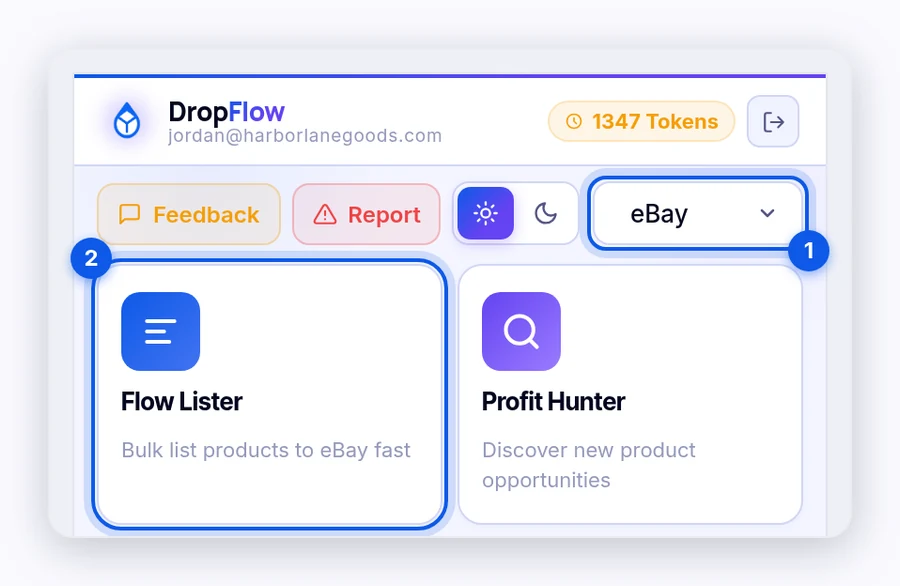
- Click the DropFlowLister icon in the Chrome toolbar.
- Pick eBay in the marketplace dropdown at the top of the popup.
- Click the Flow Lister card ("Bulk list products to eBay fast").
Flow Lister opens in a new tab titled Flow Lister · eBay.
How to choose a store and template
Every run belongs to a store. A store keeps its own markup, templates, and list of products already listed.
To choose a store and template:
- Open the Store menu and pick a store.
- No store yet? Click New Store, type a name, and click Create store.
- Open the Template menu and pick an image template.
- Click Apply.
Important: Flow Lister won't start until you click Apply. If you change the store or template, click Apply again before you press Start.
The Editor button opens the Image Template Editor. The refresh button reloads your stores.
How to add product links
To add links:
- Copy your supplier product links.
- Click Paste, or paste them into the Product Links box yourself. Put one link per line.
- Check the link count above the box.
Example links:
https://www.amazon.com/dp/B0XXXXXXXXhttps://www.aliexpress.us/item/1005XXXXXXXXXX.htmlhttps://www.walmart.com/ip/XXXXXXXXX
The badge next to Product Links shows the eBay site you're listing to. To change it, go to the popup and open eBay Settings → Region Settings.
Tip: You can send links straight from Profit Hunter with Transfer → eBay Flow Lister. See Profit Hunter.
How to choose your settings
All settings save automatically. The sections below explain each one.
Threads & Limits
| Setting | Default | What it does |
|---|---|---|
| Number of Threads | 1 | How many products are processed at once (1–3). More threads are faster but more likely to trigger supplier bot checks. |
| Max Listings | 0 | Stops the run after this many successful listings. 0 means no limit. It only works when Enable Max Listings Limit is on. |
| Min Price ($) | 0 | Skips products whose supplier price is below this amount. |
| Max Price ($) | 100 | Skips products whose supplier price is above this amount. |
| Quantity | 1 | The quantity set on each eBay listing. |
| Ad Rate % | 4 | The promoted listing ad rate set on each eBay listing. eBay charges this fee, not DropFlowLister. |
| Price Ending (cents) | 99 | The cents your price ends in, for example $24.99. |
| Default Markup % | 150 | Your profit over supplier cost. 150% turns a $50.00 item into $125.00. |
Variable Supplier Markup lets you set a different markup for AliExpress, Walmart, and Amazon. Leave a box empty to use the default markup.
Variable Markup by Cost lets you set markup bands by supplier cost. Click + Add band, then enter Cost from, to, and Markup. Leave the top band's "to" box blank for an open-ended band, such as $50 and up. A matching band overrides both the per-supplier markup and the default markup.
The Price Markup Preview shows what a $50.00 item will sell for with your current markup.
Options
| Toggle | What it does |
|---|---|
| Enable Max Listings Limit | Turns on the Max Listings cap. |
| VERO Brand Protection | Skips products from brands on the VeRO list. |
| VERO Keyword Protection (merged with Restricted Words) | Skips products whose title contains a VeRO keyword. |
| Restricted Words (skip Product Hunter restricted keywords) | Skips products whose title contains a word from your restricted words list. |
| Stock Check (skip Out of Stock) | Skips products that are out of stock or low in stock at the supplier. |
| Amazon Seller Restriction (list only when Shipper/Seller is Amazon) | Lists Amazon products only when Amazon is the shipper and seller. On by default. |
| Skip Walmart items with Delivery available (no tracking) | Skips Walmart items that offer local Delivery, because that option has no tracking number. On by default. |
| Use Template Description | Wraps the description in your description template. On by default. |
| Run in Separate Window | Opens listing tabs in their own window. It's fast and doesn't take over your keyboard. You can put other windows in front of it, but don't cover it completely. |
| AI Title & Description Optimization | Rewrites the title and description with AI, and fills item specifics. Still uses 1 credit per listing. |
| AI Image Enhancement | Edits product images with your own Replicate account before listing. Click Configure to set it up. |
| FBA Only | Lists Amazon products only when they're Fulfilled by Amazon. On by default. |
| Close Errored Listings | Closes a listing tab that hits an error, so the run moves on to the next product. On by default. |
| Chinese Sellers Only (EU) | Lists only products from China-based sellers, for stores that sell to EU buyers. Off by default. |
| Add GPSR | Adds EU product safety (GPSR) information to your listings. Off by default. |
| Optimize for Slow Computers | Gives pages more time to load between steps, so runs are steadier on slower computers. Off by default. |
AI Image Enhancement
- Images to Enhance: how many images per product to enhance, from 1 to 10.
- Background Image (Optional): click Upload Background to add a scene the AI can place your product in. Click Clear to remove it.
AI Prompt Configuration
The Title Prompt and Description Prompt are sent to the DropFlowLister AI before each listing. Keep the {paste product details…} placeholder in each prompt. Click Restore Default to undo your changes. See AI Prompt Configuration.
AI Optimizer Settings
- Enable Variation Filtering: filters product variations (sizes, colors) before listing.
- Max price difference: 10% by default. Variations that cost more than this above the base price are filtered out.
- Max delivery days: 4 by default. Variations that arrive later than this are filtered out.
Shipping Policies
Pick one eBay shipping policy for each supplier (AliExpress, Amazon, Walmart).
- Click Add next to a supplier and type a policy name, for example "Ship 1".
- Pick the policy in that supplier's menu.
- Click Apply to refresh the policies for all suppliers.
If your queue has a supplier with no policy, Flow Lister warns you before the run starts.
Lists
- VERO Brands and VERO Keywords: the protected lists. You can edit them, but they're replaced with the server list after you sign in, every hour, and when you click Refresh from Server. Treat your edits as temporary.
- Skip Keywords: products whose title contains any of these words are skipped. Click Load Defaults to add the built-in list, for example "refurbished", "renewed", and "used".
AliExpress settings in the popup
In the popup, open eBay Settings to find two more AliExpress settings:
- Max Delivery Time (days): skips AliExpress items with a longer delivery estimate. Default 10, max 90.
- Safe Mode (stock check): when off, items with 1 left still list, but items with 2–5 left are skipped. When on, anything with 5 or fewer left is skipped. Items with 6 or more always list.
How to run Flow Lister
To start a run:
- Set Start Position if you want to begin partway down your list. 0 starts at the top.
- Click Start.
- Answer any pre-run check:
- Already Listed Products Found: products already listed for this store are removed from the queue. The run continues on its own after 6 seconds.
- Missing Shipping Policies: pick policies, or click Continue Anyway to keep eBay's default policy.
- Max Listings Limit Is Off: choose Enable & Start to use your cap, or Start Anyway to list everything.
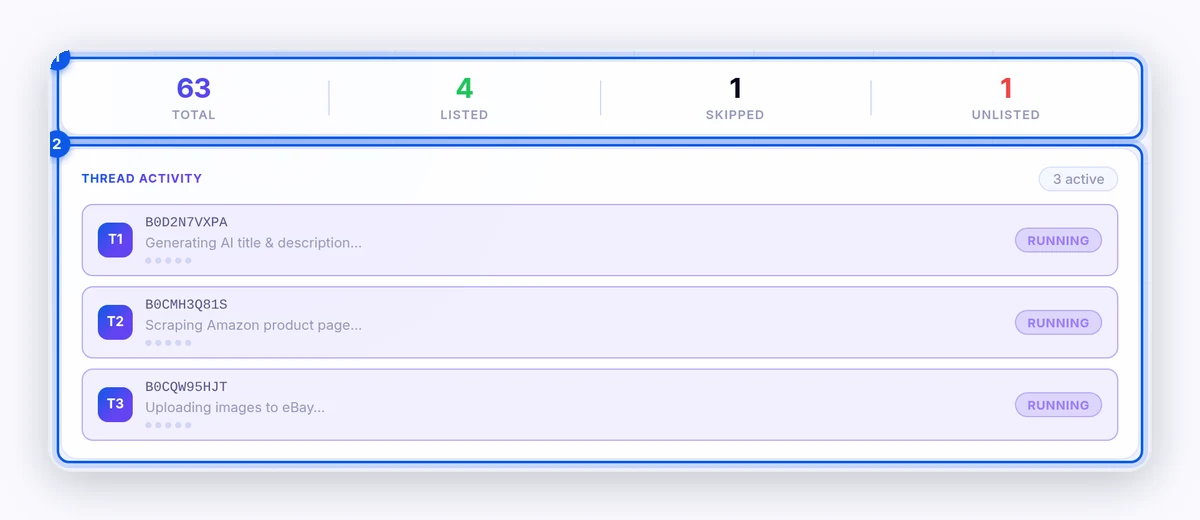
- Watch Thread Activity to see each product move through Scrape → AI Optimize → AI Enhance → Images.
Click Pause to pause, and click again to resume. Click Reset, then Reset & Terminate, to stop all listing and clear the session.
Amazon cooldown
If Amazon starts blocking requests, Flow Lister shows Amazon Cooldown Active with a timer and waits before it continues. Click End & Pause to end the cooldown and pause, so you can change settings and then resume.
How to read your results
The counters show Total, Listed, Skipped, and Unlisted.
The Listing Status table shows each link with its status, a message, and the eBay link once it's live.
| Button | What it does |
|---|---|
| Retry Skips | Tries every skipped and unlisted product once more. Successes are added to Listed. Anything that fails again is removed from the list. |
| Copy Unlisted | Copies every link that isn't listed (skipped, unlisted, or pending). |
| Clear | Clears the table. |
| Status Report | Opens a full report of the session. |
Tips and limits
- Start small. Run 5–10 links with 1 thread to check your settings before a big run.
- Use fewer threads if suppliers block you. Bot checks and cooldowns come from the supplier, not from DropFlowLister.
- eBay sets its own limits. Your eBay selling limits and required item specifics are set by eBay.
- Region support: DropFlowLister supports eBay US and Canada today, and more eBay regions are in progress.
Related articles
Still stuck? Chat with us.
Check Flow Lister for eBay: troubleshooting. If that doesn't help, email contact@dropflowlister.com with a screenshot, the product link, and the time it happened.