
Image Template Editor: design, save, and share listing image templates
Learn how to build an image template with slots, overlays, and badges, then save it, set a default, and share it as JSON.
On this page
An image template is a layout DropFlowLister uses to build your listing's main photo. It places product images into slots and adds extras like borders, badges, and your logo. Each marketplace has its own editor: the Image Template Editor for eBay and the Poshmark Template Builder for Poshmark. They work the same way.
Key points
- Two editors: The eBay editor uses a 1300 × 1308 px canvas. The Poshmark editor uses a 1080 × 1440 px canvas. Their templates are kept apart.
- Templates belong to a store: Pick a store first. Each store has its own templates.
- Saved to your account: Templates are saved on the DropFlowLister server.
- Slots and overlays: Slots hold product photos. Overlays sit on top, such as text, badges, and watermarks.
- Default template: Turn on Set as default template to use a template automatically.
- Share as JSON: Export JSON and Import JSON move templates between stores or accounts.
Before you start
- You're signed in to DropFlowLister.
- You have at least one store. See Stores.
- Have your logo or graphics ready as image files if you want to add them.
How to open the editor
To open it:
- Click the DropFlowLister icon in the Chrome toolbar.
- Pick eBay or Poshmark in the marketplace dropdown.
- Click the Template Builder card.
You can also click Editor in the eBay Flow Lister, or Edit Template in the Poshmark Flow Lister.
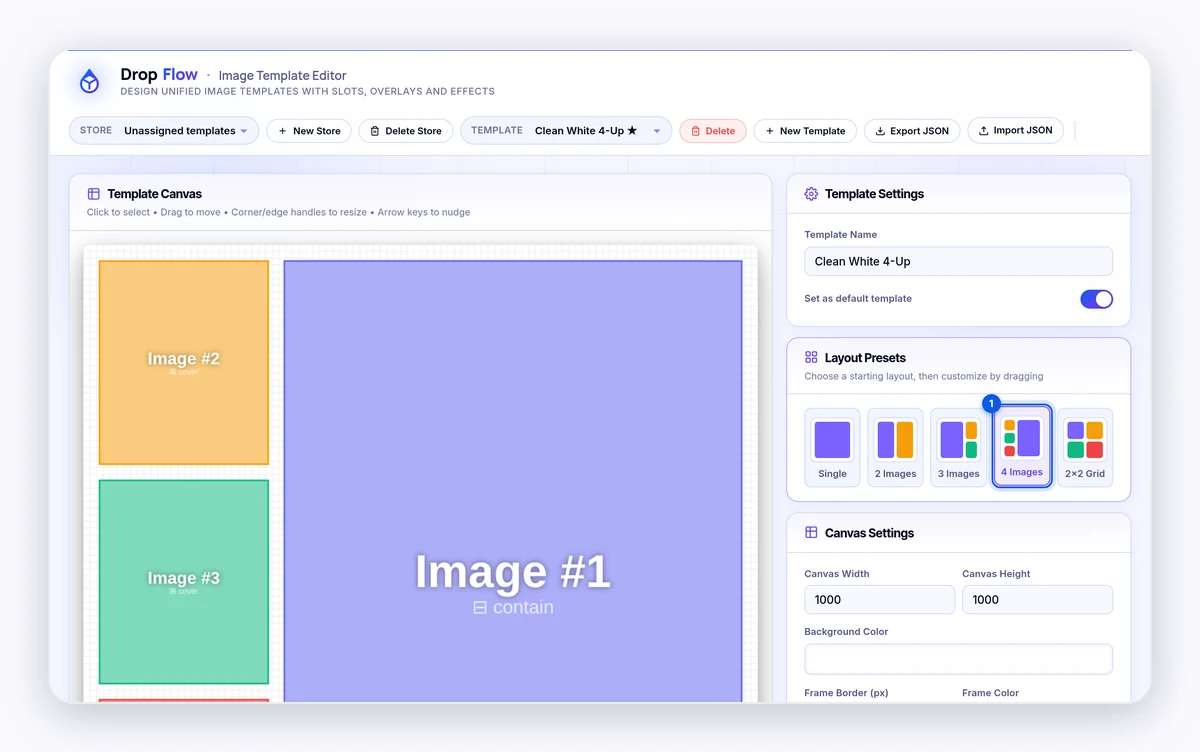
How to create a template
To create a template:
- Pick your store in the Store menu.
- Click New Template.
- Type a Template Name.
- Pick a layout under Layout Presets:
- Single: one image fills the canvas.
- 2 Images: two images side by side.
- 3 Images: one large and two small images.
- 4 Images: one large and three small images.
- 2×2 Grid: four equal images.
- Drag and resize slots on the canvas.
- Click Save Template.
You'll see "Template saved!".
How to edit the canvas
Under Canvas Settings you can change:
- Canvas Width and Canvas Height in pixels.
- Background Color.
- Frame Border (px) and Frame Color, for a border around the whole image (24 px white by default).
- Default Header Banner, a banner across the top with a set Banner Height (160 px by default).
How to work with image slots
Slots are where product photos go. The first slot gets the first product image, and so on.
To add and set up a slot:
- Click Add Slot.
- Click the slot on the canvas to select it.
- Drag it to move it, or drag a corner or edge to resize it. Arrow keys nudge it.
- Under Slot Properties, set exact values if you like:
- X Position (px), Y Position (px), Width (px), Height (px)
- Lock Aspect Ratio to keep the shape when you resize
- Rotation (°)
- Fit Mode: Contain shows the whole photo. Cover fills the slot and may crop the edges.
- Slot Background color
- Use ▲ Bring Forward or ▼ Send Backward to change which slot is on top.
- Click Remove This Slot to delete it.
How to add overlays
Overlays are drawn on top of the slots.
On the Basic Overlays tab, click any of these:
- Border
- Badge
- Watermark
- Text
- #1 Best Seller badge
- Limited Time Deal badge
On the Custom Images tab, click Upload Custom Image to add a logo, watermark, or graphic.
Note: Uploaded images are stored inside the template as image data. Use small, compressed files so templates save quickly.
How to use the grid
Under Grid & Snapping:
- Show Grid shows guide lines.
- Snap to Grid snaps items to the grid as you drag.
- Grid Size sets the grid spacing (50 px by default).
Hold Shift to turn off snapping while you drag or resize.
How to set a default, export, import, or delete
- Default: Turn on Set as default template, then click Save Template.
- Export: Pick a template and click Export JSON to download it as a file.
- Import: Click Import JSON and pick a template file. It's added to the current store.
- Delete: Pick a template, click Delete, and confirm.
Tip: Export your best template as JSON before big changes. You can import it again if you don't like the new version.
Tips and limits
- Use clear product photos. Contain is safer for products with important edges, like shoes or tools.
- Badges must be true. Only use #1 Best Seller or Limited Time Deal if they're accurate. Marketplaces set their own image rules.
- Pick the right editor. eBay templates don't appear in the Poshmark Flow Lister, and Poshmark templates don't appear in the eBay one.
Related articles
Still stuck? Chat with us.
See Image Template Editor: troubleshooting, or email contact@dropflowlister.com with a screenshot.