
Stores: create, switch, and delete your seller stores
Learn how to create a store, apply it in Flow Lister, and safely delete stores you no longer use.
On this page
A store in DropFlowLister is a named profile for one of your selling accounts or closets. It keeps its own image templates and its own list of products you've already listed, so DropFlowLister can stop duplicates in that store.
Key points
- Saved to your account: Stores are saved on the DropFlowLister server, so you see the same stores on any computer you sign in on.
- Templates belong to a store: Each store has its own image templates.
- Duplicates are tracked per store: A product listed in one store can still be listed in another.
- Markup: In the Poshmark Flow Lister, Markup Percentage is saved for each store.
- One default store: The oldest store becomes the default if you delete the current default.
- You always keep one: You can't delete your last store.
Before you start
- You're signed in to DropFlowLister.
- Pick a clear name for each store, such as your eBay user ID or closet name.
How to create a store
You can create a store from Flow Lister (eBay or Poshmark), the Image Template Editor, or the Poshmark Template Builder.
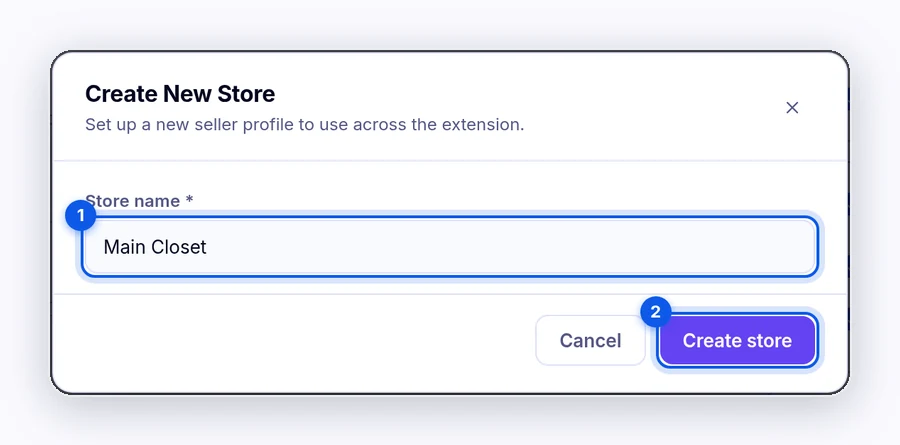
To create a store:
- Click New Store.
- Type a name, for example "Main Closet".
- Click Create store.
The new store appears in the store menu.
How to switch and apply a store
To switch stores in Flow Lister:
- Pick the store in the Store menu (eBay) or Select Store menu (Poshmark).
- Pick a template from that store.
- Click Apply.
Important: Flow Lister uses the last store you applied. If you switch stores and don't click Apply, your run uses the old store and its markup.
In the template editors, picking a store in the Store menu loads that store's templates.
How to delete stores
To delete stores:
- Click Delete Store.
- Check each store you want to delete.
- Click Confirm delete (N).
- Read the warning, then click Confirm delete again.
What happens when you delete a store:
- The store is deleted forever, and this can't be undone.
- If you delete the default store, the oldest remaining store becomes the default.
- If you delete the store in use, the page switches to the default store.
Warning: Deleting a store can't be undone, and its templates can't be recovered.
Tips and limits
- Use one store per selling account. This keeps duplicate checks accurate.
- Refresh after changes on another computer. Click the refresh button next to the store menu to reload your stores.
- No store limit: You can add as many stores as you need.
Related articles
Still stuck? Chat with us.
See Stores: troubleshooting, or email contact@dropflowlister.com with a screenshot.