
Check Offers: collect, review, and export Poshmark offers
Learn how to gather your Poshmark offers in one dashboard, compare them with Amazon prices, and export them.
On this page
Check Offers reads the offers on your Poshmark offers page and saves them to a dashboard. For each offer, it also looks up the matching Amazon product so you can see the supplier price and stock. You then decide how to answer each offer on Poshmark yourself. This article explains how.
Key points
- Collects only: Check Offers reads and saves offers. It doesn't accept, decline, or counter any offer. You do that on Poshmark.
- Adds supplier data: Each offer shows the matching Amazon price, stock, and delivery, when found.
- Days filter: You choose how many days back to collect (1 to 365).
- Stored in your browser: Collected offers are saved in this browser. You can export them as JSON and CSV.
Before you start
- Sign in to the extension with an active DropFlowLister plan.
- Sign in to Poshmark in the same browser.
- Make sure your listings have a SKU, so offers can be matched to Amazon products.
How to collect offers
- Click the DropFlowLister icon in your toolbar.
- Choose Poshmark in the marketplace dropdown.
- Click the Check Offers card.
- Wait while poshmark.com/news/offer opens. Collection starts on its own with your saved days setting.
- Watch the Offer Collector panel on the page. Found and Processed go up as it works.
To start again by hand on the offers page:
- Set Collect offers from last to the number of days you want.
- Click Start.
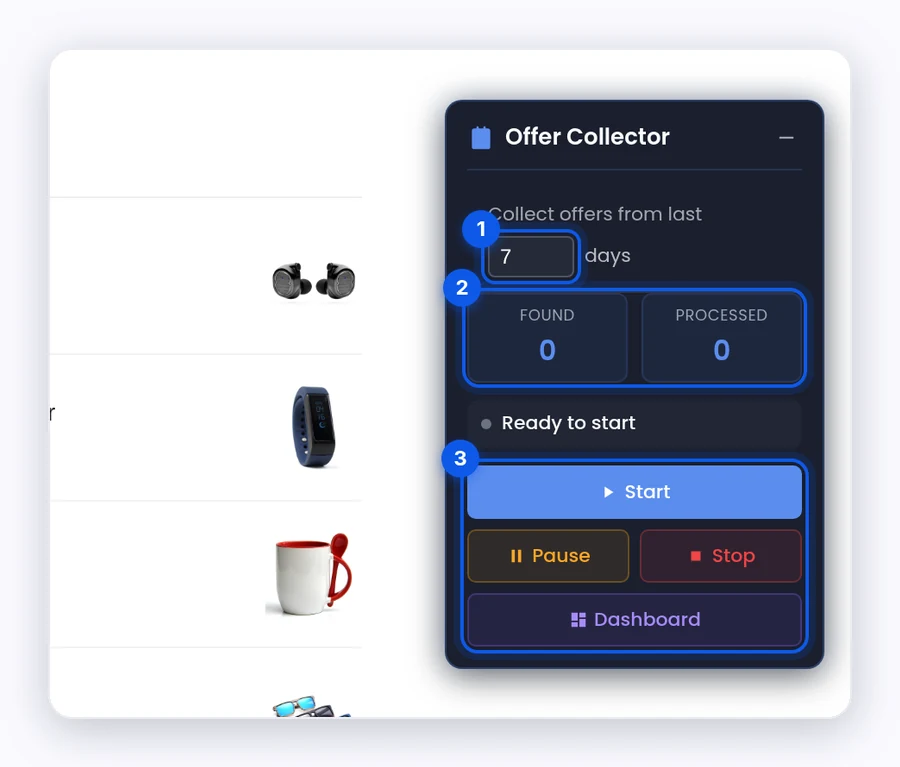
- Click Pause to pause, and Resume to go on.
- Click Stop to end the run.
- Click the − icon to shrink the panel.
Note: The default is 3 days. If the box on the Poshmark page shows a different number, set it to the number of days you want.
How to use the Offer Collector Dashboard
- Click Dashboard on the panel.
- Check the totals at the top: Total Offers, Accepted, Declined, and Pending.
- Use the status menu to filter: All Status, Pending (the default), Accepted, Declined, or Expired.
- Type in Search by title, seller, or buyer... to find an offer.
- Click a row to see the Amazon product card. It shows price, stock, delivery, and a profit comparison when both prices are known.
- Click Open All on Amazon to open every matched Amazon product.
The table shows Listing, List Price, Seller, Buyer, Last Buyer Offer, Last Seller Offer, Status, Collected At, and Actions. Bundle offers show a "Bundle (N items)" badge.
How to export or delete offers
- Click Export. Two files download:
poshmark-offers-<date>.jsonandposhmark-offers-<date>.csv. - To delete one offer, use the delete action on its row and confirm.
- To delete all offers, click Clear All and confirm.
Important: Clear All deletes every collected offer from this browser. This can't be undone. Export first if you want a copy.
Tips and limits
- Keep the tab open. Collection scrolls the offers page and opens offer details. Closing the tab stops it.
- Partial Data: If the Amazon details couldn't be read, the product card shows "Partial Data".
- Poshmark decides what you see. Which offers appear, and for how long, is set by Poshmark, not by DropFlowLister.
Tip: Use the profit comparison before you answer an offer on Poshmark. It shows whether the offer still covers your Amazon cost.
Related articles
Still stuck? Chat with us.
See Check Offers troubleshooting or email contact@dropflowlister.com with a screenshot of the panel.