
Flow Tracker for Poshmark: track stock, prices, and sizes
Learn how to keep your Poshmark closet in sync with Amazon stock, prices, and sizes, one listing or the whole closet at a time.
On this page
Flow Tracker for Poshmark checks each listing in your closet against its Amazon product. If Amazon runs out, the listing is marked Not For Sale. If the price changes, your price follows your markup. If sizes sell out, those sizes are set to 0. This article covers setup, every setting, and the limits.
Key points
- Runs in your closet: A Product Tracker widget appears on your Poshmark closet page.
- Supplier today: Amazon (Amazon.com or Amazon.ca). Other suppliers are skipped.
- Three monitors: Stock, price, and size variations. Turn on at least one.
- Reversible actions: Out-of-stock items are set to Not For Sale, not deleted. They go back to For Sale when Amazon restocks.
- Keep the tab visible: Chrome slows hidden tabs, so tracking needs the tab active.
Before you start
- Sign in to the extension with an active DropFlowLister plan.
- Sign in to Poshmark and open your own closet.
- Make sure each listing has the Amazon ASIN as its SKU, or in its description. Listings made with the Poshmark Flow Lister already do.
- Set your Poshmark region in the popup (US or Canada).
How to open the tracker
- Click the DropFlowLister icon in your toolbar.
- Choose Poshmark in the marketplace dropdown.
- Click the Flow Tracker card ("Monitor your listings & analytics").
- Wait while Poshmark opens and goes to your closet.
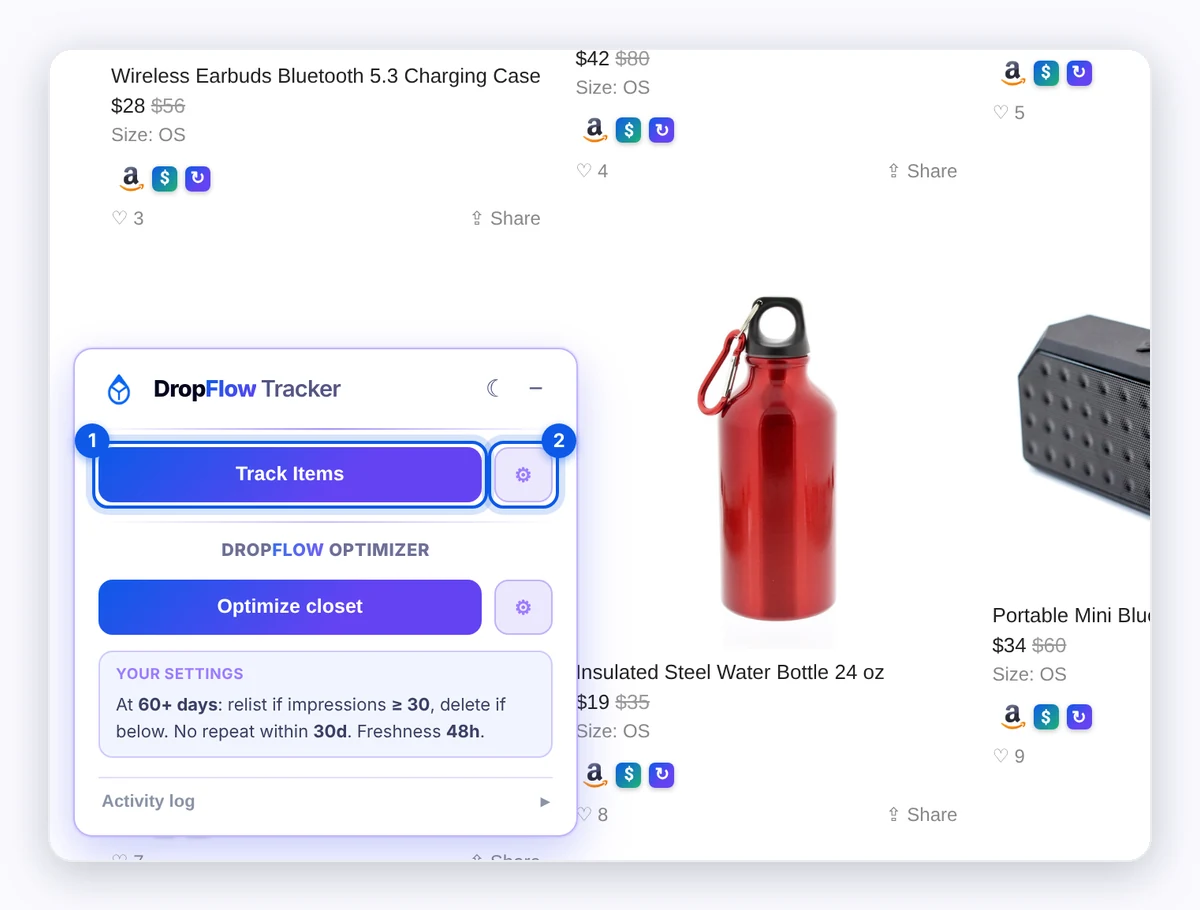
- Find the Dropflow Product Tracker widget.
How to set up tracking
- Click Open Settings on the widget.
- Turn on the monitors you want (see the table).
- Set Markup Percent (%) and your other options.
- Save and close the Settings window.
Settings reference
| Setting | Default | What it does |
|---|---|---|
| Enable Stock Monitor | — | Hides items (Not For Sale) when Amazon is out of stock. |
| Enable Price Monitor | — | Updates the price when the Amazon price changes. |
| Enable Size Variation Tracking | — | Syncs stock size by size. Only affects multi-size listings. |
| Max Price Difference for Size Variations (%) | 10 | Sizes priced too far from the main price are treated as unavailable. |
| Markup Percent (%) | 100 | Whole number. 100% makes $100 → $200; 70% makes $100 → $170. Negative is allowed. |
| Variable Markup by Cost | off | A different markup for each Amazon cost band. A matching band beats Markup Percent. |
| Price Trigger Threshold | 0 | Only update the price if the change is bigger than this amount. |
| Max Delivery Days | 4 (1–30) | Items that take longer to arrive are marked unavailable. |
| Start Tracking From Product # | 0 | Skip listings before this spot in your closet. 0 starts at the first. |
| Stop Tracking After Product # | 0 | Stop after this spot. 0 means no limit. |
| Skip Items Tracked Within (hours) | 0 (0–720) | Skip items tracked successfully within this many hours. 48 is suggested for restarting big closets. Set it back to 0 for normal runs. |
| Amazon Domain | Amazon.com | Amazon.com (USA) or Amazon.ca (Canada). |
| 🚀 Concurrent Tracking Level | 3 (1–3) | How many items are checked at once. |
| Continuous Tracking (background) | off | Loops your whole closet until you press Stop, on one thread. |
How to track your closet
- Open your own closet.
- Click Track Items on the widget ("Check all items and update stock/price from supplier").
- Keep the tab active and visible. Don't minimize the window or switch tabs.
- Watch each tile. A badge shows the result, such as "Availability: set NOT FOR SALE (out of stock)" or a price change.
- To stop, use the Stop control that shows while it runs, or reload the page. In continuous mode, use Pause/Resume or Stop on the widget.
To track just one listing, click the $ button on its tile ("Track just this listing").
Note: If Amazon starts to block checks, the tracker shows a cooldown timer (for example 3:00). It resumes from the same product after the cooldown. Keep the tab active and visible.
What happens to each listing
- Out of stock on Amazon: The listing is set to Not For Sale. If Poshmark won't allow that switch, the price is raised to 10 times the normal price instead ("10x fallback").
- Back in stock: The listing goes back to For Sale.
- Price changed: The new price is the Amazon cost plus your markup, if the change beats Price Trigger Threshold.
- Size out of stock: That size is set to 0. Other sizes stay.
- Can't check: If Amazon shows a CAPTCHA, throttles, or doesn't load, the item is skipped, not changed. It shows "…skipped, not checked".
Tips and limits
- Start with a range. Use Start Tracking From and Stop Tracking After to test 20 items first.
- Continuous mode: It runs in a separate window and keeps going while the tab sits behind another window. Leave a sliver visible. Chrome shows a speaker icon; that's a silent keep-alive sound.
- Poshmark limits are Poshmark's. How fast you can edit listings is set by Poshmark, not by DropFlowLister.
Tip: After a run, use the Closet Optimizer. It only relists items with a fresh green tracker badge, so tracking first gives it current data.
Related articles
Still stuck? Chat with us.
See Flow Tracker for Poshmark troubleshooting or email contact@dropflowlister.com with a screenshot of the widget.