
Poshmark order tools: copy, order, and record Poshmark sales
Learn how to use the DropFlow buttons on Poshmark sales pages to buy from Amazon, keep order notes, and save the sale to Bookkeeping.
On this page
When something sells in your Poshmark closet, DropFlowLister adds tools to the sale page. They help you find the supplier product, buy it on Amazon, and record your profit. This article covers each button and the full Amazon flow.
Key points
- Lives on Poshmark sale pages: The tools appear on your My Sales order pages (
/order/sales/...). - Supplier today: Amazon. The SKU on the listing points to the Amazon product.
- You place the order: Amazon checkout stops for your review. You click Place Order yourself.
- Records the sale: After the order, the tool reads Amazon Order History and saves the sale to Bookkeeping.
- Order notes stay with each order: A note card keeps the Amazon email, order number, and ETA for that sale.
Before you start
- Sign in to the extension with an active DropFlowLister plan.
- Sign in to Poshmark and to Amazon in the same browser.
- Make sure your listings have a SKU. Listings made with the Poshmark Flow Lister already have one.
- Check your Poshmark region in the popup (US or Canada).
The buttons on a Poshmark sale page
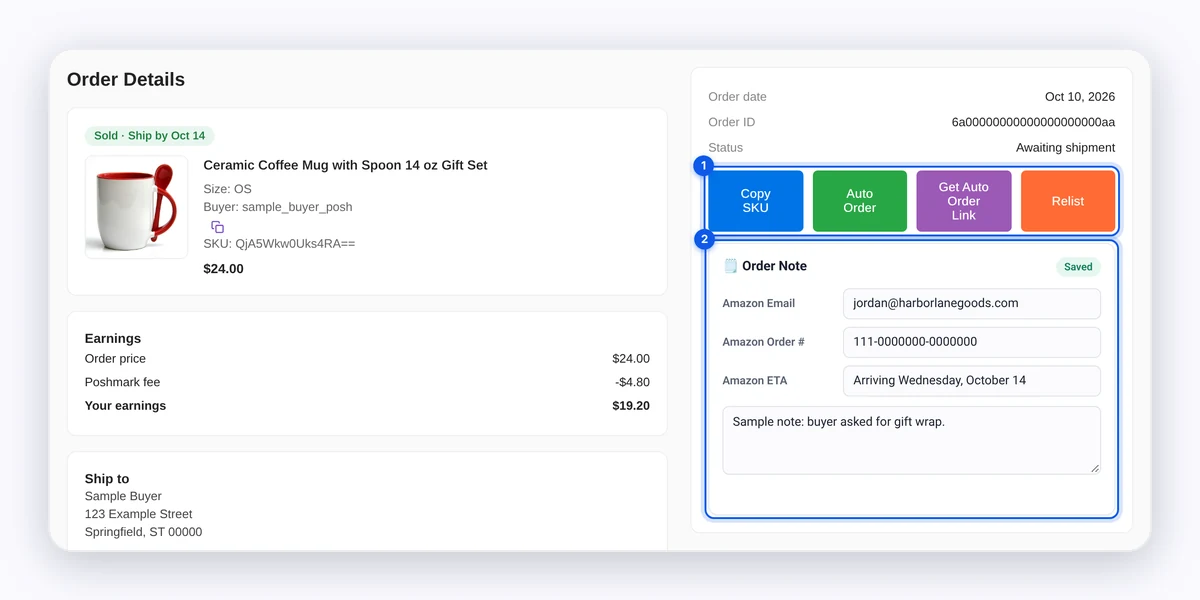
- Copy SKU: copies the listing's SKU.
- Copy seller name: a small copy icon next to the name on the order.
- Auto Order: opens the Amazon product and starts checkout (see below).
- Get Auto Order Link: copies a link that starts Auto Order when opened. You'll see "Auto order link copied to clipboard".
- Relist: opens the sold item, then Poshmark's Edit → Copy Listing so you can post it again.
- Poshmark fee (behind the scenes): the tool reads Poshmark's Pricing and earning info panel and works out the fee and other deductions. Every "Less:" row between Price and Net Earnings counts. These numbers go to Bookkeeping.
- Order note card: fields for Amazon account email, Amazon order #, Amazon ETA, and free notes.
How to order a Poshmark sale from Amazon
- Open the sale in Poshmark → My Sales.
- Click Auto Order.
- Wait while the Amazon product opens.
- If asked, pick a size and click Buy Now before the timer ends. You'll see "Please select a size (if available) and click Buy Now. Time remaining: 15s".
- Wait while the tool opens your cart and moves to checkout.
- Check the shipping address, payment, and item.
- Click Place Order on Amazon. You'll see "⚠️ Please review the order details and click "Place Order" button to complete the purchase".
- Wait on the thank-you page. You'll see "✅ Order placed successfully!" and then "Navigating to Order History to extract order details for bookkeeping...".
- Let Order History load. You'll see "✅ Order data extracted successfully!" and then "✅ Sale recorded successfully! True Profit: $X".
The order note on the Poshmark sale fills in the Amazon order number and ETA, even if you closed the Poshmark tab.
Important: You must click Place Order on Amazon yourself. Check the shipping address every time. Poshmark's shipping rules decide where the item must go.
How to use bundle and offer pages
- Bundle pages: each item shows its SKU and an Open Amazon Listing for this SKU link.
- Offer pages: each item shows its SKU, or "SKU Not Available" if it has none.
Tips and limits
- Keep the timer in mind. The size and Buy Now prompt lasts 15 seconds. If it runs out, you'll see "Time expired. Auto order cancelled." Click Auto Order again.
- Bookkeeping and credits: Saving a sale doesn't use credits. If you ever see "❌ Insufficient credits. Please purchase more credits.", email contact@dropflowlister.com.
- Fee math: The fee comes from Poshmark's own pricing panel. Poshmark sets its fees, not DropFlowLister. The DropFlowLister website lists the Poshmark fee as 20%, but the tool uses the exact amount Poshmark shows for the sale.
Tip: Use Get Auto Order Link if a helper places your Amazon orders on another computer.
Related articles
Still stuck? Chat with us.
See Poshmark order tools troubleshooting or email contact@dropflowlister.com with the Poshmark order link and a screenshot.