
Market Analyzer: scan competitors, filter results, and find products
Learn how to scan competitor eBay stores, filter what sells, and send winning titles to Profit Hunter.
On this page
Market Analyzer scans the listings of eBay sellers you choose and collects what they sell and how much has sold. You can then filter the results and send the best titles to Profit Hunter to find them at a supplier.
Key points
- Input: eBay seller usernames, one per line, or a .txt or .csv file.
- Sold data: Turn on Total Sold History to collect sold counts over time. It's slower but gives more detail.
- Your own stores are removed: Market Analyzer removes your own eBay store IDs from the list automatically.
- Rate limits are eBay's: If eBay shows a bot check, Market Analyzer pauses for 60 seconds and resumes.
- Results page: Search, filter, sort, export, and send titles to Profit Hunter.
Before you start
- You're signed in to DropFlowLister with an active plan.
- Your eBay region is set in the popup. The page shows it in the region badge.
- Collect competitor usernames. You can save sellers from eBay search results with the Save eBay Seller icon. See eBay search and item page tools.
How to open Market Analyzer
To open it:
- Click the DropFlowLister icon in the Chrome toolbar.
- Pick eBay in the marketplace dropdown.
- Click the Market Analyzer card ("Analyze market trends and competitors").
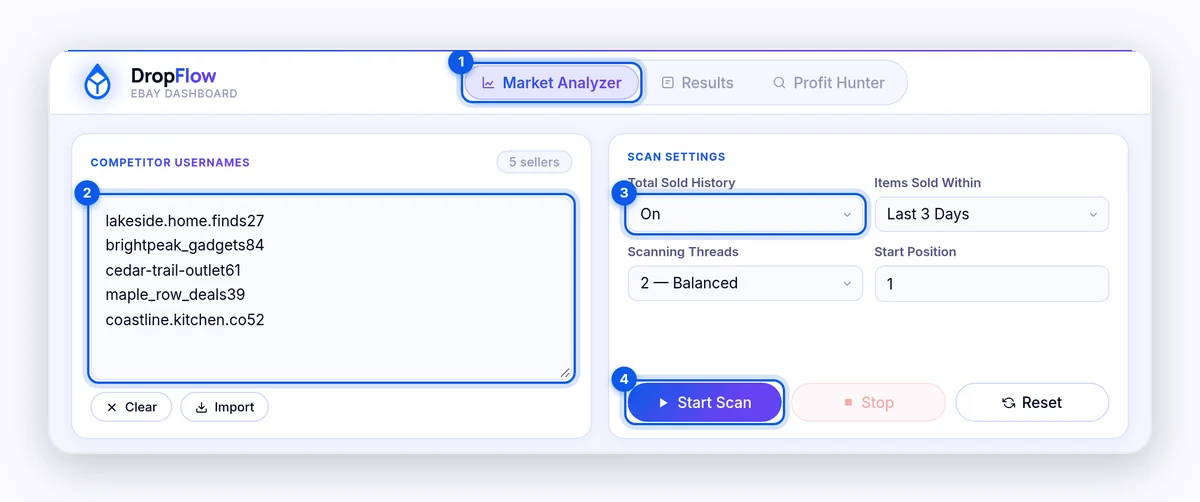
It opens in the eBay Dashboard, on the Market Analyzer tab.
How to run a scan
To run a scan:
- Type usernames into Competitor Usernames, one per line. Or click Import and pick a .txt or .csv file.
- Set Total Sold History to On or Off.
- Pick Items Sold Within, from All Time to Last 90 Days.
- Pick Scanning Threads: 1 — Slow & Safe, 2 — Balanced, or 3 — Fast.
- Set Start Position if you want to start partway down your list.
- Click Start Scan.
The Scan Progress panel shows sellers scanned, items found, and the current seller. Click Stop to stop.
Settings reference
| Setting | What it does |
|---|---|
| Total Sold History | On collects each item's sold history over time. Sellers are scanned one at a time. Off is faster. |
| Items Sold Within | Keeps items that sold within this time window. |
| Scanning Threads | How many sellers are scanned at once. Fewer threads are less likely to trigger eBay's bot check. |
| Start Position | The seller number to start from. |
Tip: Start with 1 — Slow & Safe. If eBay shows "Pardon Our Interruption" often, stay on 1 thread.
How to review scan results
To open the results, click Open Results Page, or the Results tab in the eBay Dashboard.
On the Scan Results page you can:
- Type in Search titles, sellers, item numbers… to find items.
- Pick a seller in All Sellers.
- Click Filters to open advanced filters:
- Min Sold Quantity in a time window, and Also Min Sold for a second window
- Price Range ($)
- Min Competitors
- Sold Within (days)
- Sort By: Most Sold (30d, 7d, or 90d), price, or date
- Click Apply Filters or Clear Filters.
- Pick Per page: 25, 50, or 100.
How to send titles to Profit Hunter
To send them:
- Filter the results to the items you want.
- Click Send to Hunter. All visible titles are sent.
- If Profit Hunter already has items, choose Continue & Replace to replace them, or Cancel to transfer those items to Flow Lister first.
Then open the Profit Hunter tab and click Search Titles.
How to save, load, and delete results
- Export JSON saves your results to a file.
- Import JSON loads a file you exported before.
- Select All and Delete Selected remove chosen items.
- Delete All removes every result.
Important: Deleting results and using Reset can't be undone. Reset clears all scanned items and progress. Export JSON first if you want a backup.
Tips and limits
- eBay controls rate limits. Scanning many sellers quickly can trigger eBay's "Pardon Our Interruption" page.
- Keep the tab open while scanning. Leaving the page asks you to confirm, because the scan stops.
- eBay sites: Market Analyzer scans eBay US and Canada. More eBay regions are in progress.
Related articles
Still stuck? Chat with us.
See Market Analyzer: troubleshooting, or email contact@dropflowlister.com.