
Boost My Listings: relist, revise, and clean up eBay listings
Learn how to refresh low performers, toggle Best Offer, send offers, remove VeRO risks and duplicates, and schedule it all.
On this page
Boost My Listings is a dashboard that runs eBay Seller Hub tasks for you. It clicks through Seller Hub the same way you would, but much faster. This article covers each workflow, its settings, and how to schedule runs.
Key points
- Seven tools in one dashboard: End & Sell Similar, Bulk Revise, Optimization (Send Offers), Listing Sanitizer, VeRO Checker, Duplicate Cleaner, and Schedule Automation.
- It drives a real eBay tab: Each workflow opens Seller Hub in a tab and clicks through it. Let that tab work.
- Some actions end listings: End & Sell Similar relists what it ends. Listing Sanitizer, VeRO Checker, and Duplicate Cleaner end listings without relisting them.
- Only one workflow at a time: End & Sell Similar and Bulk Revise can't run together.
- Region: Pick your eBay site in eBay Region. DropFlowLister supports eBay US and Canada today, and more eBay regions are in progress. The menu also shows other eBay sites, but those aren't supported yet.
Before you start
- Sign in to the extension with an active DropFlowLister plan.
- Sign in to your eBay seller account in the same browser.
- In Seller Hub → Listings → Active, click Customize and show Views (30 days), Item number, Sold quantity, Available quantity, Time left, and Custom label (SKU).
- For Listing Sanitizer, open the eBay Flow Lister once so the VeRO keyword list loads.
How to open Boost My Listings
- Click the DropFlowLister icon in your toolbar.
- Choose eBay in the marketplace dropdown.
- Click the Boost My Listings card.
- Choose your eBay Region at the top of the dashboard.
The dashboard opens in its own tab. Click View Logs to see progress messages.
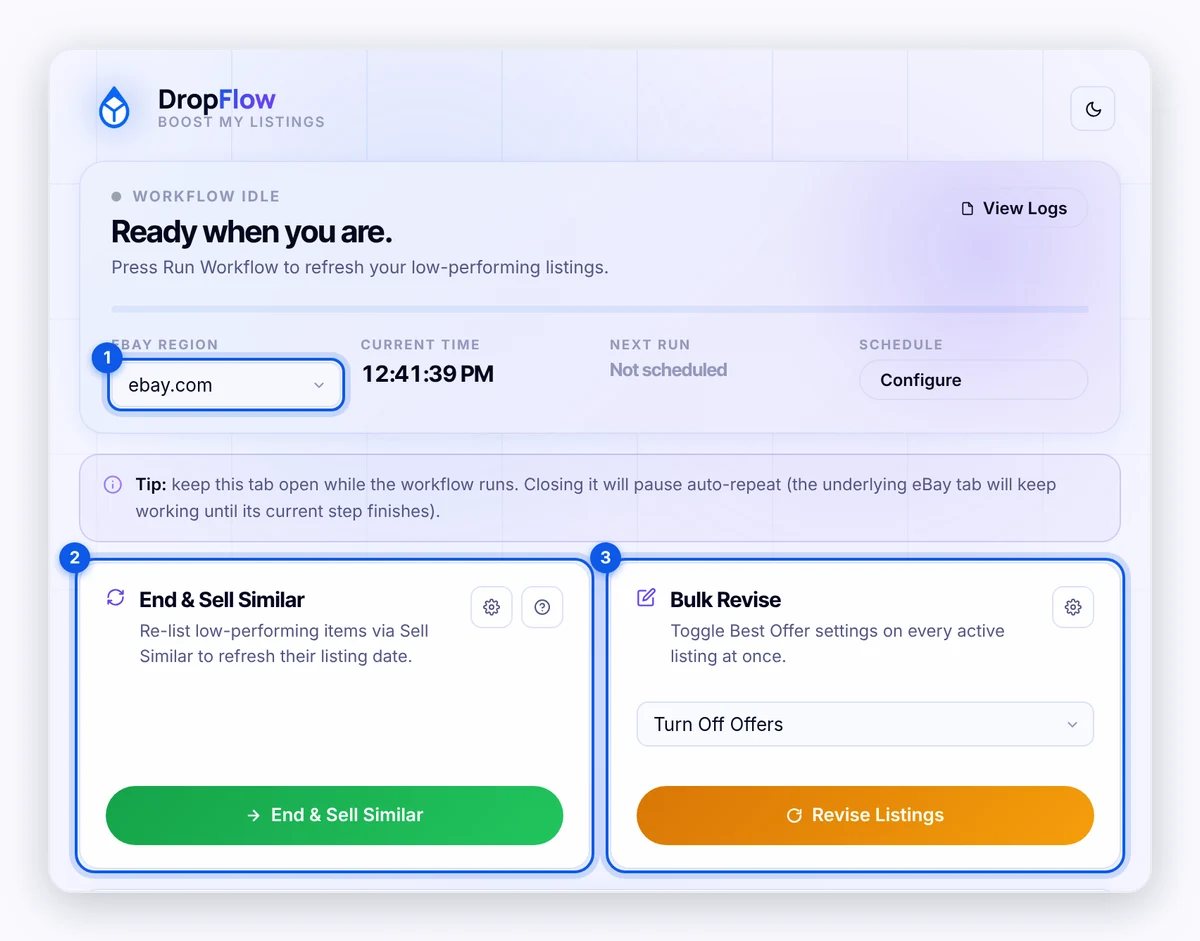
Note: Keep the dashboard tab open while a workflow runs. Closing it pauses auto-repeat. The eBay tab finishes its current step first.
How to use End & Sell Similar
End & Sell Similar ends low-performing listings and relists them with eBay's Sell similar. The new listings get a fresh start date.
- Click the gear icon on the End & Sell Similar card.
- Set the Filters:
- Max Sold (default 0): listings with this many sales or fewer.
- Max Views (30d) (default 1000): listings with this many views or fewer in 30 days.
- Hours Left ≤ (default 0 = ignore): only listings ending within this many hours.
- Click End & Sell Similar.
- Watch the eBay tab. The tool ends the matching listings, opens the Ended page, clicks Sell similar, then resumes the new drafts so they go live.
- Click Stop to stop.
The workflow repeats until no listings match. You'll then see "All done — no more listings match your filters."
How to use Bulk Revise
Bulk Revise turns Best Offer on or off on every active listing.
- Choose a mode: Turn Off Offers, Turn On Offers, or Off Then On.
- Click Revise Listings.
- Let the eBay tab work through each Edit listings X - Y group.
Open the gear for Bulk Revise Settings. Debug mode shows a status badge on the eBay tab and writes detailed steps to the browser console. Turn it on only when support asks.
How to send offers to interested buyers
- Enter an Offer Percent (0–100) on the Optimization card.
- Optional: click the messages icon and type a note in Send Offers — message to buyers (up to 500 characters).
- Click Send Offers.
To repeat it, choose Auto-run every (2 min (test), 15 min, 30 min, 1 hour, 2 hours, or 4 hours) and turn it on. It runs in a background tab and skips a turn if the last run is still going.
If auto-run is on when you start End & Sell Similar or Bulk Revise, you'll see Pause Send Offers auto-run? Click Pause auto-run & continue to go on, or Cancel run. Auto-run stays on after the run finishes and after Chrome restarts.
How to use Listing Sanitizer
Listing Sanitizer checks your live titles against the VeRO keyword list that Flow Lister uses. It doesn't match brand names. Brands are checked when you list.
- Set Scan first N pages (0 = all).
- Click Scan Store.
- Click Review results when the scan ends.
- In Listing Sanitizer — Review, use the filter box, tick rows, and choose End Selected, End All Flagged, or Keep. Kept items aren't flagged again.
- Click Export CSV to save the list.
- Check the Run Complete screen before you close it.
How to use VeRO Checker
- Click Run VeRO Check.
- The tool opens your listings that are on hold for a policy violation.
- For each one, it reports the item, title, reason, and supplier link to DropFlowLister to improve the shared VeRO list.
- It then ends those listings.
Important: VeRO Checker sends listing details to DropFlowLister and ends the held listings. Ended listings can't be restored from this tool.
How to use Duplicate Cleaner
- Set Scan first N pages (default 1; 0 = all).
- Click Scan & Clean.
- Review Duplicate Cleaner — Preview. Each SKU group shows the listing it keeps (most sales, views, and watchers) and the ones it will end.
- Click Confirm & End All, or Cancel.
- When Duplicate Cleaner — Run Complete appears, check every group. Re-run any group still showing END or ⚠ Retry.
- Click I've Verified — Close.
How to schedule workflows
- Click Configure next to Schedule.
- For End & Sell Similar and Bulk Revise, tick Enable.
- Set Start Time (24h).
- Set Repeat Every (1 to 24 hours).
- Save. Next Run shows the next time.
Schedules run from the extension's background, so the dashboard tab doesn't need to stay open. Chrome must be running and your computer awake at the scheduled time. Schedules use your computer's local time zone. If both fire at once, End & Sell Similar runs first.
Tips and limits
- Start with one page. Test Duplicate Cleaner and Listing Sanitizer on one page before scanning everything.
- eBay controls the pace. eBay may show a "Pardon Our Interruption" check or slow pages. Those limits come from eBay.
Warning: Listing Sanitizer, VeRO Checker, Duplicate Cleaner, and the end step of End & Sell Similar end real listings. Review previews before you confirm.
Related articles
Still stuck? Chat with us.
See Boost My Listings troubleshooting or email contact@dropflowlister.com with a screenshot of View Logs.