
Flow Tracker for eBay: load, scan, and update prices and stock
Learn how to load your active listings, check each supplier product, and send new prices and quantities back to eBay.
On this page
Flow Tracker keeps your marketplace listings in line with your suppliers. It reads a file of your active eBay listings, checks each matching supplier product, and works out a new price and quantity. You can then download the result or upload it to eBay for you. This article covers setup, every setting, and the limits you should know.
Key points
- Works from a listings file: Flow Tracker uses eBay's active-listings CSV report. You can load it yourself or let Automate download it for you.
- Matches by SKU: Each listing's SKU (Custom label) tells Flow Tracker which supplier product to check. Listings created with DropFlowLister already have the right SKU.
- Suppliers: Amazon, AliExpress, and Walmart. Target, Bed Bath & Beyond, and Home Depot aren't supported yet.
- Safe by default: Out-of-stock, slow, or risky items get quantity 0 (or are ended, if you choose). Big price drops are blocked until you check them.
- You choose what changes: You can update price, stock quantity, or both.
Before you start
- Sign in to the extension with an active DropFlowLister plan. Every plan includes Flow Tracker, and tracking doesn't use credits.
- Sign in to your eBay seller account in the same Chrome browser.
- Make sure your listings have a SKU in the Custom label (SKU) field. Flow Tracker skips rows with no SKU.
- Check your eBay region in the popup. Flow Tracker supports eBay US and Canada, and more eBay regions are in progress. Rows from other eBay sites are left alone.
How to open Flow Tracker
- Click the DropFlowLister icon in your Chrome toolbar.
- Choose eBay in the marketplace dropdown.
- Click the Flow Tracker card ("Track Amazon prices & sync to eBay").
Flow Tracker opens in a new tab.
How to load your listings
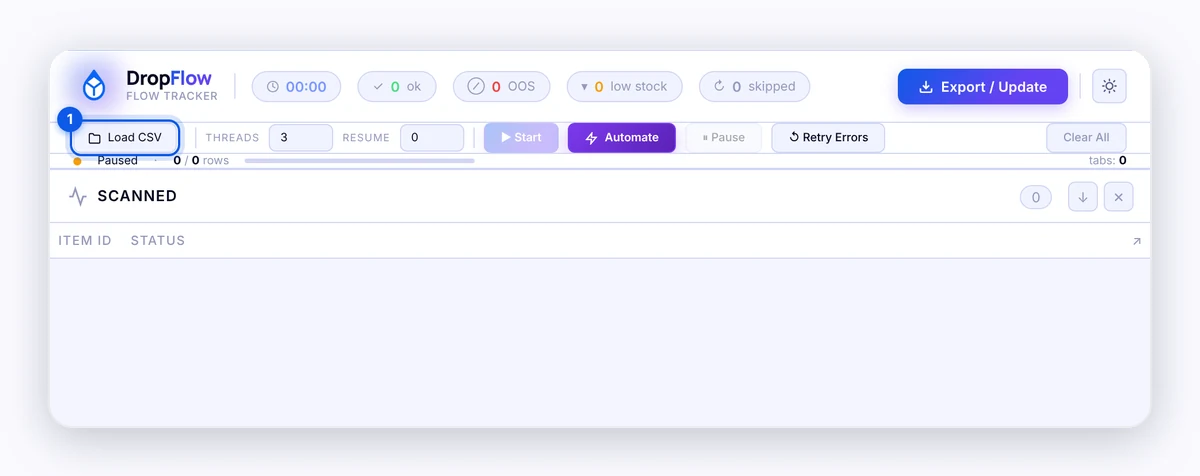
You have two choices. Use Load CSV if you already have the file. Use Automate to have Flow Tracker get it for you.
Option A: Load a CSV you downloaded
- In eBay, go to Seller Hub → Reports → Downloads.
- Download the All active listings report.
- In Flow Tracker, click Load CSV.
- Choose the file you downloaded.
Your rows appear in the Items list with Item ID, SKU, Price, and Qty.
Option B: Let Automate download it
- Click Automate.
- Review the Automate Settings window (the same settings as Scan Settings, below).
- Click Confirm & Automate.
- Wait while a Seller Hub Reports tab opens. Flow Tracker picks Listings → All active listings and clicks Download for you.
- Leave the tab alone. It stays open for about 60 seconds for the download, then closes.
When the file arrives, the status bar reads "Automate: CSV loaded — starting scan..." and the scan starts on its own.
Note: If the download isn't caught within about 2 minutes, the status bar shows "Automate: download interception timed out — try Load CSV manually". Use Option A instead.
How to run a scan
- Set Threads (1 to 8, default 3). This is how many supplier pages are checked at once.
- Set Resume to the row number you want to start from. Leave it at 0 to start at the top.
- Click ▶ Start.
- Check the Scan Settings window and change anything you need.
- Click Confirm & Start.
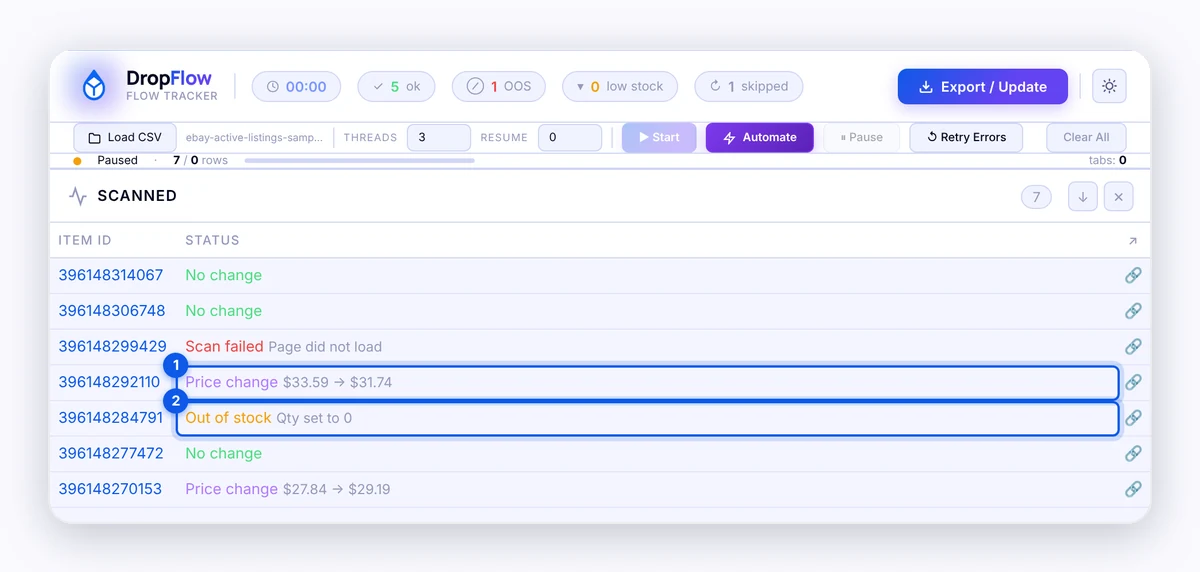
Each row moves to the Scanned list with a colored status. The header counts ok, OOS (out of stock), low stock, and skipped rows.
- Click ⏸ Pause to pause the run.
- Click ↺ Retry Errors to re-check rows that timed out or were blocked.
- Click Clear All to empty the lists.
Scan Settings reference
| Setting | Default | What it does |
|---|---|---|
| Delivery Threshold (days) | 7 (1–90) | If the supplier's delivery takes longer, quantity is set to 0. |
| AliExpress Delivery (days) | 30 (1–120) | A separate delivery limit for AliExpress, which ships slower. |
| OOS / Failed Action | Set Qty → 0 | Choose Set Qty → 0 to keep the listing live with no stock, or End item to end it. |
| Fixed Quantity | 1 | The quantity in-stock items get. |
| Markup % | 100 | Your profit markup on the supplier cost. 100% turns a $10 cost into $20. |
| Price Endings Filter | blank | Only track listings whose price ends in these cents (for example 99,97). Blank tracks all. |
| Price Ending to Apply | Don't change ending | Makes new prices end in .99, .97, .95, or .93. |
| Max Price Drop % | 30 (1–100) | Blocks any price cut bigger than this. 100 turns the guard off. |
| Set qty to 0 when the supplier charges for delivery | off | Zeroes quantity when the supplier adds a paid shipping charge, since that cost isn't in your markup. |
| What to update on eBay | Price and Stock quantity | Both are always scanned. These boxes decide what gets written back. Keep at least one on. |
| Auto Upload to eBay when scan completes | off | Uploads the result to eBay as soon as the scan finishes. |
| Platform Variation Pricing | default | A markup % per supplier (AliExpress, Walmart, Amazon). Blank uses the global Markup %. |
| Variable Pricing by Range | off | Markup % by supplier cost band. A matching band beats the global and per-supplier markup. A blank max means open-ended (for example $50+). |
| ↻ Re-apply to scanned | — | Recalculates prices on rows already scanned, so you don't have to rescan after changing bands. |
How to send updates to eBay
- Click Export / Update in the header.
- In Export & Update, choose what to include:
- Update Price and Update Quantity
- Quantity: Fixed or Use actual
- OOS / Failed: End listing, Set qty to 0, or Exclude from export
- Zero qty when delivery exceeds limit
- Check the Preview table and the counts for OOS/Errors and Slow delivery.
- Click one of these:
- ⬇ Download CSV saves a file named
ebay_update_<date>.csv. You can upload it to eBay yourself. - ↑ Push to eBay saves the same file and opens Seller Hub → Reports → Uploads, where Flow Tracker adds the file for you.
- ⬇ Download CSV saves a file named
Important: Ending a listing on eBay can't be undone from Flow Tracker. If you're unsure, choose Set qty to 0 instead of End listing.
What the row statuses mean
| Status | What happened |
|---|---|
| "No changes made" | The price and stock already match. |
| "Price changed: $X → $Y" | A new price will be written. |
| "Restocked qty 1 · …" | The item is back in stock, so quantity goes back up. |
| "Out of stock on |
The supplier has no stock. |
| "Low quantity — only N on |
The supplier has very few left, so the listing is paused to avoid overselling. |
| "Delivery too slow (Nd > Md) — qty set to 0" | Delivery is longer than your threshold. |
| "ASIN changed: A → B — qty set to 0" | Amazon now sends that link to a different product. |
| "Not Amazon-fulfilled — qty set to 0" | The offer isn't shipped by Amazon. |
| "VeRO brand "X" — qty set to 0 for protection" | The brand is on the VeRO list. |
| "PRICE DROP BLOCKED — …" | The new price is too far below the current one. The price is left alone. |
Tips and limits
- Start small. Load a short CSV first and use ⬇ Download CSV to review the result before you push.
- Use fewer threads if you see blocks. Suppliers may slow you down if you check too many pages at once. Flow Tracker pauses on its own when this happens.
- Keep the tab open. Closing the Flow Tracker tab stops the scan.
- Low-stock rule for AliExpress: With Safe Mode off in eBay Settings, "1 left" still counts as in stock. With it on, 1 to 5 left counts as low stock.
- eBay upload rules are eBay's. File size and upload limits on Seller Hub Reports are set by eBay, not by DropFlowLister.
Tip: Turn on Max Price Drop % and keep it at 30 or lower. A bad supplier read can cost you money on every sale until you spot it.
Related articles
Still stuck? Chat with us.
See Flow Tracker for eBay troubleshooting or email contact@dropflowlister.com. Include a screenshot, the Item ID, the time it happened, and your extension version.