
Auto-Scheduling: schedule, limit, and clear bulk listing runs
Learn how to start Flow Lister automatically at a set time, once or every day, with an optional listing cap.
On this page
Auto-Scheduling starts a Flow Lister run for you at the time you pick. Each marketplace has its own schedule, so eBay and Poshmark runs are set separately.
Key points
- Two modes: One-time execution runs once. Repeat daily runs at the same time every day.
- Local time: The time uses your computer's clock and time zone, in 24-hour format.
- Links first: The schedule runs the links already loaded in that marketplace's Flow Lister.
- Optional cap: Max Listing Limit stops a scheduled run after that many listings.
- Chrome must be open: The schedule runs inside the extension, so Chrome needs to be running at the scheduled time.
- Notifications: Chrome shows a notification when a scheduled run starts or fails.
Before you start
- You're signed in to DropFlowLister with an active plan and credits.
- Your links, store, template, and settings are ready in Flow Lister, and you clicked Apply. See Flow Lister for eBay or Flow Lister for Poshmark.
- You're signed in to the marketplace in the same Chrome profile.
- Chrome notifications are allowed for DropFlowLister, so you'll see start and failure alerts.
How to set a schedule
To set a schedule:
- Click the DropFlowLister icon in the Chrome toolbar.
- Pick the marketplace in the dropdown, for example eBay.
- Open the settings card for that marketplace, such as eBay Settings or Poshmark Settings.
- Scroll to Auto-Scheduling.
- Turn on Enable Auto-Schedule.
- Set Schedule Time (24-hour), for example 14:30 for 2:30 PM.
- Pick a Schedule Mode: One-time execution or Repeat daily.
- Type a Max Listing Limit, or leave it empty for no limit.
- Click Save Schedule.
You'll see "✅ Auto-schedule saved (…)", and Next scheduled run shows the next date and time.
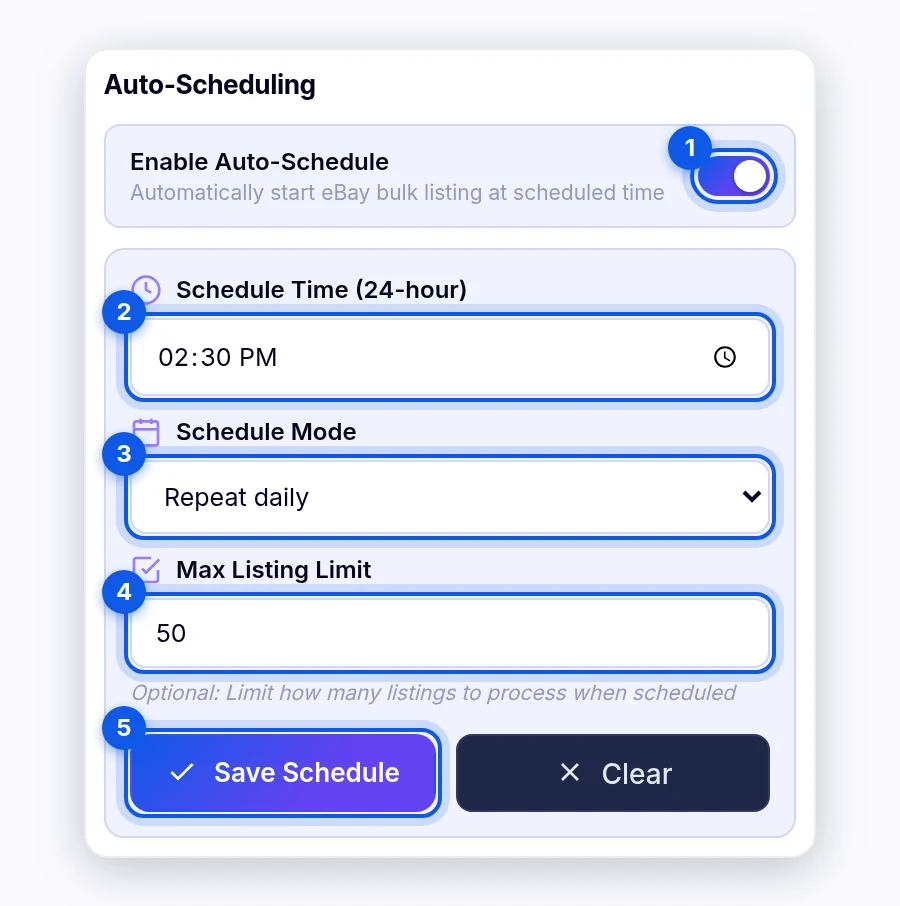
Note: If the time you pick has already passed today, the first run happens tomorrow at that time.
What happens at the scheduled time
- DropFlowLister checks that you're signed in and your session is valid.
- It opens the Flow Lister page for that marketplace.
- It starts the run with the links already loaded.
- Chrome shows Auto-Schedule Started (or eBay Auto-Schedule Started).
If Flow Lister is already running, the scheduled run is skipped, and the Flow Lister log shows "Auto-schedule skipped: already running".
How to change or clear a schedule
To change a schedule, edit the fields and click Save Schedule again.
To clear a schedule:
- Open the same Auto-Scheduling section.
- Click Clear.
Next scheduled run goes back to "—".
Settings reference
| Setting | What it does |
|---|---|
| Enable Auto-Schedule | Turns the schedule on or off. |
| Schedule Time (24-hour) | The time of day the run starts, in your computer's time zone. |
| Schedule Mode | One-time execution runs once. Repeat daily runs every 24 hours. |
| Max Listing Limit | Stops the scheduled run after this many listings. Empty means no limit. |
| Next scheduled run | Shows when the next run will start. |
Tips and limits
- Keep the computer awake. Chrome must be open and your computer awake at the scheduled time, so the run can start on time.
- Load enough links. For a daily schedule, refill Flow Lister with new links. Products already listed in the store are skipped.
- Use a cap. A Max Listing Limit helps you control credit use and stay under marketplace listing limits.
- Marketplace limits still apply. Listing limits on eBay and Poshmark are set by those marketplaces, not by DropFlowLister.
Tip: Run the same links by hand once before you schedule them. That way you know your settings work.
Related articles
Still stuck? Chat with us.
See Auto-Scheduling: troubleshooting, or email contact@dropflowlister.com with a screenshot of your schedule and the notification you saw.