
Account: create, sign in, reset your password, and sign out
Learn how to create a DropFlowLister account, sign in to the extension, reset your password, and sign out safely.
On this page
You need a DropFlowLister account to use the extension. You sign in once in the popup, and DropFlowLister keeps you signed in and checks your plan in the background.
Key points
- One account for everything: The same email and password work in the extension and the web app.
- Sign up and reset on the web: Create an Account and Forgot your password? open
https://app.dropflowlister.com/auth. - Plan checks run in the background: While the popup is open, DropFlowLister re-checks your access every 60 seconds.
- Short outages are OK: If DropFlowLister can't reach its server, it keeps your access for up to 24 hours based on the last good check.
- Some data follows your account: Stores and templates are saved to your account. Most other settings are saved on each computer.
Before you start
- Use Chrome version 116 or newer.
- Install DropFlowLister. See Install and set up DropFlowLister.
- Have an email address you can access.
How to create an account
To create an account:
- Click the DropFlowLister icon in the Chrome toolbar.
- Click Create an Account.
- Fill in the sign-up form on the DropFlowLister website.
- Come back to the popup to sign in.
How to sign in to the extension
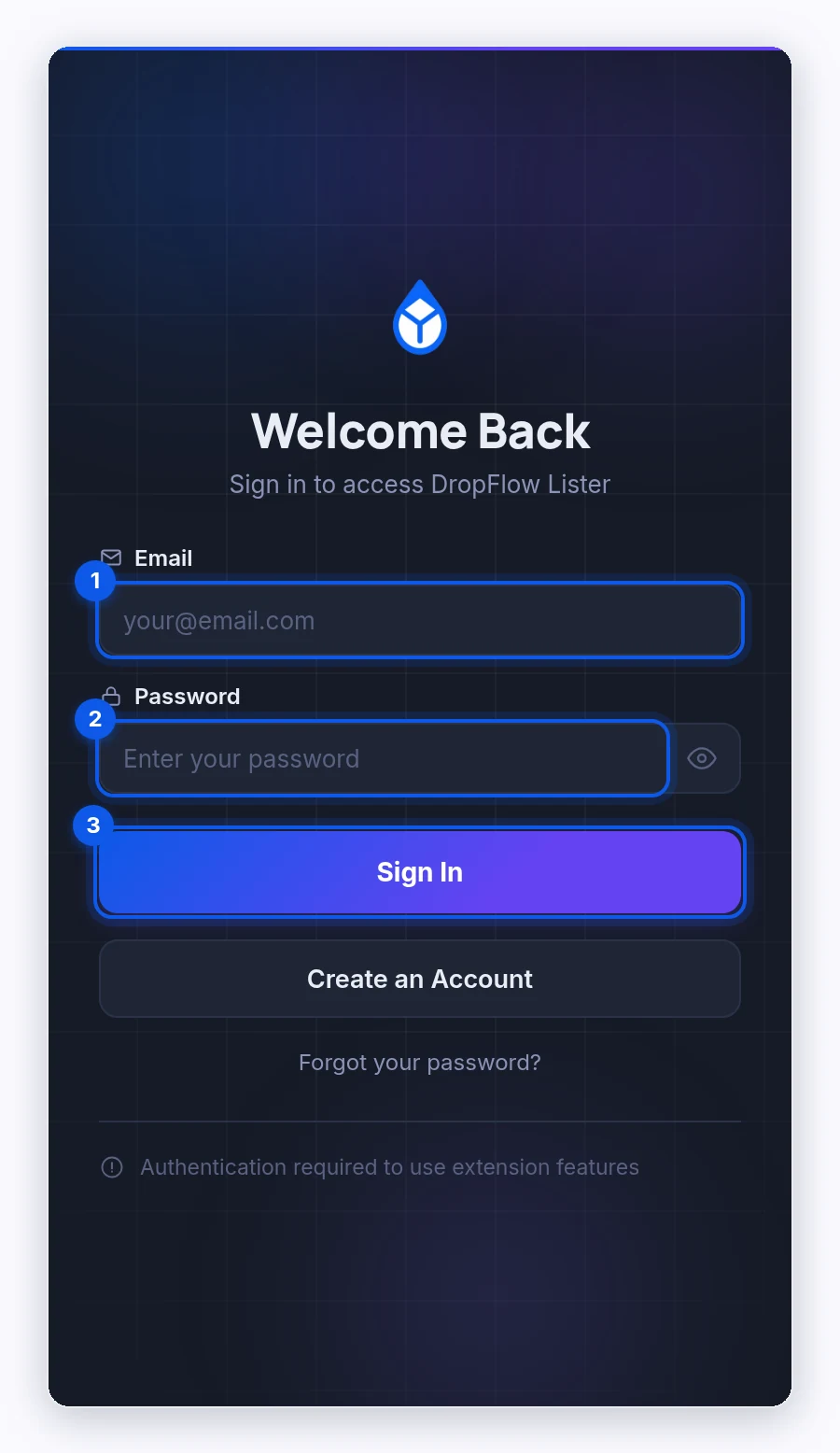
To sign in:
- Click the DropFlowLister icon.
- Type your Email.
- Type your Password. Click the eye icon to show it.
- Click Sign In.
You'll see "Login successful! Loading...", and then the popup shows your email and your credit balance (Tokens) in the header.
Note: The popup may show "Verifying your session…" for a moment while it checks your plan. This is normal.
How to reset your password
To reset it:
- Click the DropFlowLister icon.
- Click Forgot your password?.
- Follow the steps on the DropFlowLister website.
- Sign in to the popup with your new password.
How to sign out
To sign out:
- Click the DropFlowLister icon.
- Click the log-out icon in the header.
- Click OK when asked "Are you sure you want to log out?".
Important: Signing out stops tools that need your account, including scheduled runs. Stop running Flow Lister sessions before you sign out.
How your session works
- Staying signed in: DropFlowLister refreshes your sign-in on its own. If it can't, you'll see "Your session expired", and you'll need to sign in again.
- Plan checks: While the popup is open, it re-checks your access every 60 seconds. The saved result is refreshed every 10 minutes.
- Lock screens: If your plan isn't active, the popup and DropFlowLister pages show a lock screen with a button to fix it. See Billing and access errors.
Using more than one computer
You can sign in on more than one computer with the same account. Here's what moves with you:
| Saved to your account | Saved in your browser on each computer |
|---|---|
| Stores, image templates, shipping policies, credits | Flow Lister settings, AI prompts, region, schedules, Replicate key |
There's no limit on how many computers can use one account.
Changing your email or deleting your account
To delete your account, email contact@dropflowlister.com from the address on your account with the subject Privacy Request.
To change your email, sign in to the DropFlowLister dashboard at https://app.dropflowlister.com and open Account Settings.
Related articles
Still stuck? Chat with us.
See Account and sign-in errors, or email contact@dropflowlister.com.