
Auto Order for eBay: place, track, and record supplier orders
Learn how to buy an eBay order from your supplier in a few clicks, send the buyer an ETA, and record the sale.
On this page
When you sell an item on eBay, you still need to buy it from your supplier and ship it to the buyer. Auto Order does most of that work. It adds a DropFlow Auto Order panel to the eBay order page. One click opens the supplier product, fills in the buyer's address, and can place the order. This article covers setup, every setting, and the limits.
Key points
- Starts on the eBay order page: Look for the DropFlow Auto Order panel on Seller Hub → Orders → order details.
- Matches by SKU: The listing's SKU tells Auto Order which supplier product to buy.
- Suppliers: Amazon, Walmart, and AliExpress each have their own checkout flow. For Amazon, amazon.com and amazon.ca are supported today.
- You stay in control: By default, you click the final Place Order yourself.
- After-order helpers: It can record the sale in Bookkeeping, send an ETA message, mark the order shipped, add a note, and restore the listing quantity.
Before you start
- Sign in to the extension with an active DropFlowLister plan. Every plan includes Auto Order.
- Sign in to eBay and to your supplier account (Amazon, Walmart, or AliExpress) in the same browser.
- Make sure the listing has a SKU (Custom label). Listings made with DropFlowLister already do.
- Optional: in the popup, go to eBay Settings and enter your Amazon Email. It's saved in the order note so you know which Amazon account placed the order.
How to place an Auto Order
- Open the order in Seller Hub → Orders and click into the full order details.
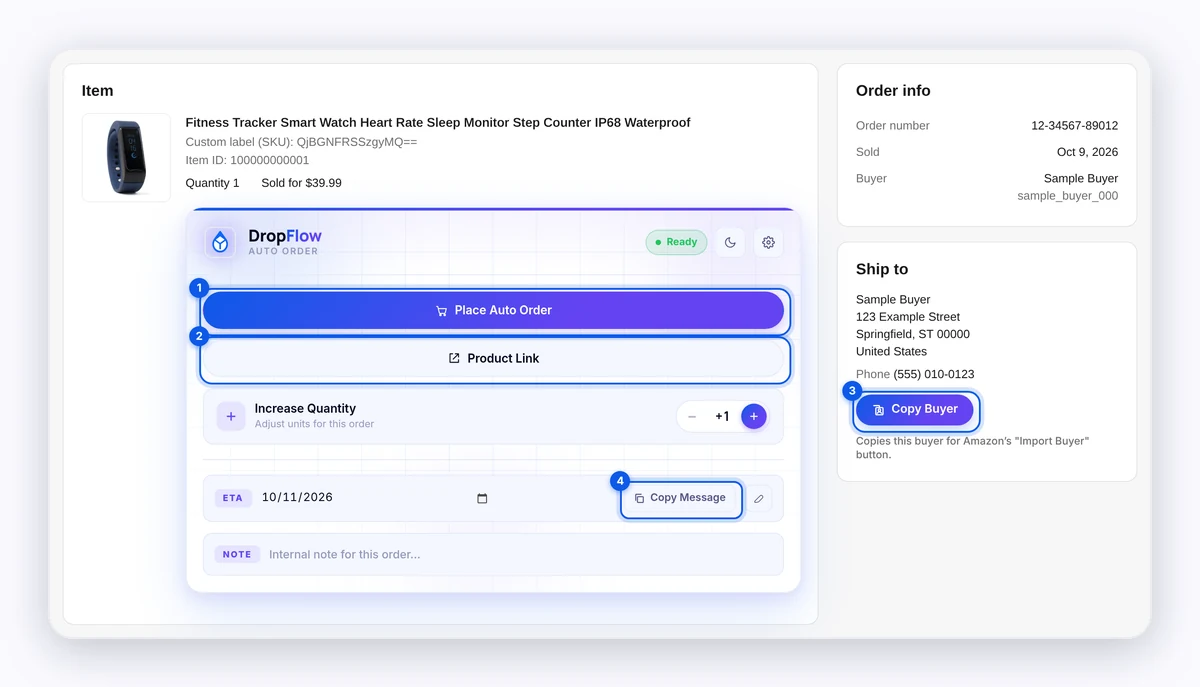
- Find the DropFlow Auto Order panel.
- Click Place Auto Order.
- Wait while the supplier product page opens. Auto Order checks the product and clicks Buy Now.
- If the product ID on the page doesn't match, you'll see ASIN mismatch detected. Compare the two products and choose whether to go on.
- If a coupon can't be clipped, you'll see "⚠️ Coupon could not be clipped automatically". Clip it yourself, or click Continue without coupon.
- Wait while checkout fills in the buyer's address and any gift options.
- Review the order and click Place Order. (If Place order automatically is on, this click is done for you.)
Note: On Amazon, Chrome may show a bar that says DropFlowLister "started debugging this browser". Auto Order uses this to click buttons the way a person would. The bar goes away when the order step ends.
Other panel buttons
- Product Link: opens the supplier product for this order.
- Get SKU: shows only when eBay hides the SKU. It fetches the SKU from the listing.
- Copy Buyer: copies the buyer's full shipping details. On the Amazon address form, click Import Buyer to paste them in. If you're signed in, the copy syncs to your DropFlowLister account so you can import on another computer.
- Copy Message: copies an ETA message for the buyer. Pick a delivery date first. Click the edit icon to change the template. Use
{{Customer_Name}}and{{Delivery_Date}}as fill-ins. - Qty Updater (±): opens the active listing and adds back the quantity you choose (1 to 10), so a sold item stays in stock.
- DropFlow true profit: a row in eBay's earnings box. It equals your eBay order earnings minus the supplier order total.
Auto Order Settings reference
Open Auto Order Settings with the gear on the panel.
| Setting | What it does |
|---|---|
| Copy Auto Link instead of Auto Order | The main button copies an order link to your clipboard instead of opening the supplier. |
| Checkout as Gift | Picks Amazon's gift option so the price slip is hidden. |
| Gift Message | Text on the gift slip (default "-"). |
| Gift Message Sender | The "From" name on the gift slip (default "-"). |
| Place order automatically (skip final click) | Amazon clicks Place Order for you after the address is filled. |
| Auto Bookkeeping | Sends finished orders to your DropFlowLister Bookkeeping. |
| Send ETA message (AI) | After the supplier confirms, sends an AI-written delivery message to the eBay buyer. |
| Mark eBay order as shipped automatically | Clicks Mark as Shipped on the eBay order when the supplier order is done. |
| Increase quantity of eBay order automatically | Adds the sold quantity back to the listing after a good order. |
| Write note on eBay order | Adds an internal note to the eBay order with your name. |
| Auto-close Amazon tab after order | Closes the supplier tab after Place Order works. |
| Your Name (for notes) | The name used in notes (default "Me"). |
| Store Name | Your eBay store name for Bookkeeping. It fills in from the eBay page. |
Important: Place order automatically spends money on your supplier account with no final check. Turn it on only after a few orders go through cleanly.
Tips and limits
- Use the full order view. If you see "No buyer shipping details found on this page", open the full order details and try again.
- Check the address. If you see "Could not finalize address — please complete manually", finish the address on the supplier page yourself.
- Supplier rules are the supplier's. Purchase limits, coupons, and checkout checks are set by Amazon, Walmart, or AliExpress, not by DropFlowLister.
- No credits used: Send ETA message (AI) and Auto Bookkeeping don't use credits. Only listings use credits.
Tip: Turn on Auto Bookkeeping and Write note on eBay order. You get a record of every sale and a note that shows who ordered it.
Related articles
Still stuck? Chat with us.
See Auto Order troubleshooting or email contact@dropflowlister.com with the eBay order number, a screenshot, and the time.