
Bookkeeping: open, fill, and check your sales records
Learn how to open Bookkeeping for each marketplace and how DropFlowLister fills it with your sales automatically.
On this page
Bookkeeping keeps a record of your sales, supplier costs, fees, and profit. It lives in the DropFlowLister web app. The extension fills it in for you when you order a sale through Auto Order. This article explains how to open it and how sales get there.
Key points
- Web app, not the extension: Bookkeeping opens at app.dropflowlister.com in a new tab.
- One section per marketplace: eBay and Poshmark each have their own section today.
- Filled automatically: eBay sales are saved after an Auto Order when Auto Bookkeeping is on. Poshmark sales are saved after you place the Amazon order from a Poshmark sale page.
- Profit included: Each saved sale includes a true profit: what you earned minus what you paid the supplier.
Before you start
- Sign in to the extension and to the web app with the same DropFlowLister account.
- Sign in to your supplier account (Amazon, Walmart, or AliExpress) in the same browser.
- For eBay, open Auto Order Settings on an eBay order page and turn on Auto Bookkeeping.
- Every DropFlowLister plan includes Bookkeeping, and saving a sale doesn't use credits.
How to open Bookkeeping
- Click the DropFlowLister icon in your toolbar.
- Choose a marketplace in the dropdown (eBay or Poshmark).
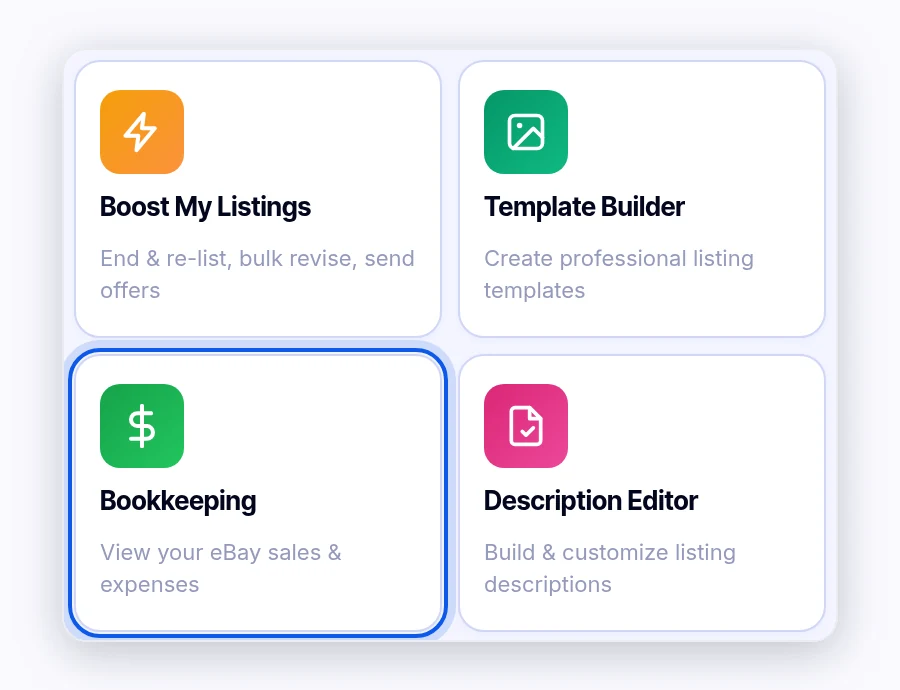
- Click the Bookkeeping card ("View your eBay sales & expenses" or "View your Poshmark sales & expenses").
The web app opens on that marketplace's section.
How eBay sales get into Bookkeeping
- On an eBay order page, open Auto Order Settings (gear icon).
- Turn on Auto Bookkeeping.
- Check Store Name. It fills in from the eBay page and labels the sale with your store.
- Click Place Auto Order and finish the supplier order.
- Wait on the supplier's order details page. You'll see "Reading Amazon order…", then "Reading order tax for bookkeeping…", then "Sale recorded successfully."
If Auto Bookkeeping is off, you'll see "Auto-bookkeeping is off — saved locally (N pending)". The sale is kept in this browser but not sent.
How Poshmark sales get into Bookkeeping
- Open the sale in Poshmark → My Sales.
- Click Auto Order and place the order on Amazon.
- Wait while the tool opens Amazon Order History.
- Look for "✅ Sale recorded successfully! True Profit: $X".
The Poshmark fee and other deductions come from Poshmark's Pricing and earning info panel.
Note: The web app may also show a "Bookkeeping Complete!" window that says "Your order data has been successfully saved and processed." Click Close.
What gets recorded
| Item | Where it comes from |
|---|---|
| Sale price and earnings | The eBay or Poshmark order page |
| Marketplace fees and deductions | The order's earnings panel |
| Supplier order total and tax | The supplier's order page |
| Store | Store Name (eBay) or your closet (Poshmark) |
| True profit | Earnings minus the supplier total |
Tips and limits
- Use one browser. Sign in to your marketplace, supplier, and DropFlowLister in the same Chrome profile.
- Don't close the supplier tab early. Bookkeeping reads the order after it's placed. Let the success message show first.
- Exports and edits: The Bookkeeping dashboard has a one-click CSV export with date, order number, sale price, fees, supplier cost, and profit for each order. You can set a default fulfillment cost or change it on each order. You can't add a sale by hand.
- Data retention: DropFlowLister keeps your data while your account is active and as long as needed for legal, tax, and accounting reasons. Export your records before you close your account.
Tip: Turn on Write note on eBay order too. Your note and your Bookkeeping record together make it easy to match each sale to its supplier order.
Related articles
Still stuck? Chat with us.
See Bookkeeping troubleshooting or email contact@dropflowlister.com with the order number and a screenshot.