
Activity Logs: view, filter, and export tracking events
Learn how to open the Activity Logs page, find past tracking events, and export or clear them.
On this page
Activity Logs is a page that lists events from product tracking, such as when a supplier product became unavailable or when a listing's stock or price changed. You can filter the list, open details for any entry, and download it as a file.
Note: Activity Logs fill in once a tracking tool starts running. Before your first run, the page shows "No logs found." That's normal. Each tracker's own panel and tile badges also show what happened during a run.
Key points
- Open it from the popup: Settings → Account → View Activity Logs.
- Five counts at the top: Total Logs, Unavailable, Stock Out, Stock In, and Price Updates.
- Filter by event, time, or ASIN/SKU.
- Export JSON saves your logs to a file. Clear All deletes them for good.
Before you start
- Sign in to the extension. The page asks you to log in if you aren't signed in.
- Have an ASIN or SKU handy if you want to search for one product.
How to open Activity Logs
- Click the DropFlowLister icon in your browser toolbar.
- Open eBay Settings or Poshmark Settings.
- Scroll to Account.
- Click View Activity Logs. The page opens in a new tab.
What each entry shows
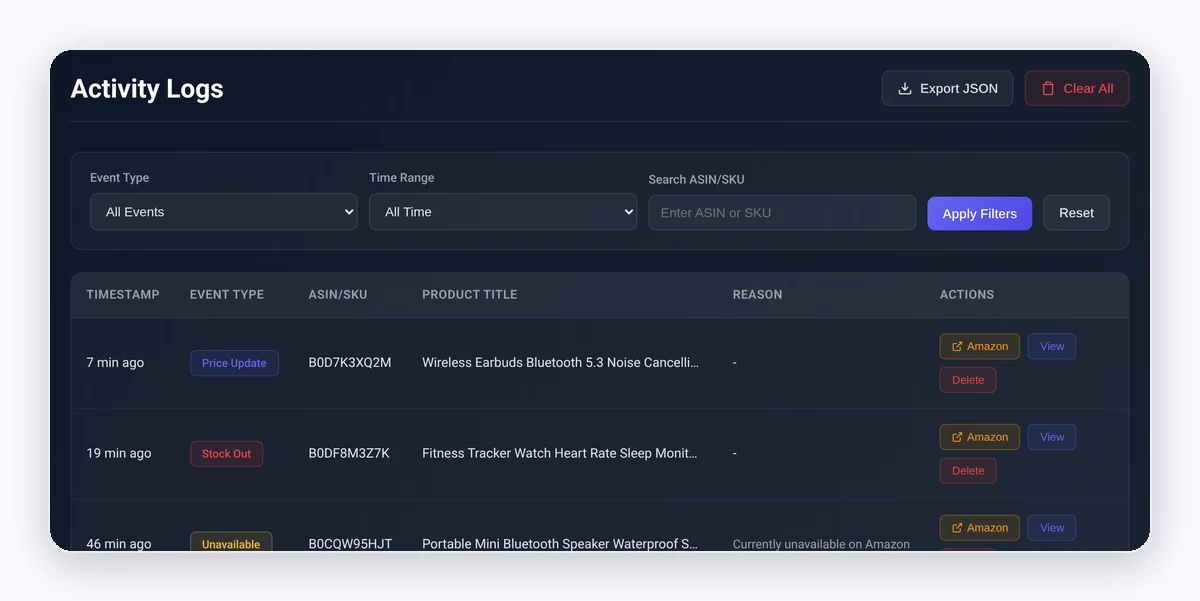
The table has these columns:
- Timestamp: When it happened, such as "5 min ago."
- Event Type: What happened.
- ASIN/SKU: The product's ID.
- Product Title: The item's name.
- Reason: Why a product was marked unavailable, if known.
- Actions: Buttons to open details, view the item on Amazon or Poshmark, or delete the entry.
Click an entry's details to open Log Details. It shows the timestamp, event, ASIN/SKU, title, unavailable reason, source URL, and extra data.
How to filter logs
- Pick an Event Type: All Events, Product Unavailable, Stock Out, Stock In, Price Update, Sync Started, or Sync Completed.
- Pick a Time Range: All Time, Last Hour, Last 24 Hours, or Last 7 Days.
- Type an ASIN or SKU in Search ASIN/SKU (optional).
- Click Apply Filters. You can also press Enter in the search box.
- Click Reset to clear all filters.
The table shows 50 entries per page. Use Previous and Next to move between pages.
How to export or clear logs
To export:
- Click Export JSON.
- Save the file. It's named like
dropflow-logs-2026-10-10.jsonand holds up to your 100 most recent entries.
To delete one entry:
- Click the delete button on its row.
- Click OK on "Delete this log entry?"
To delete everything:
- Click Clear All.
- Click OK on "Are you sure you want to delete ALL logs? This action cannot be undone."
Warning: Clear All permanently deletes every log entry. Export first if you want a copy.
Tips and limits
- Logs are stored on your DropFlowLister account, not only in your browser. DropFlowLister keeps account data while your account is active, then deletes or anonymizes it.
- Export before clearing so you keep a record.
- Use the search box to see the history of a single product.
Related articles
Still stuck? Chat with us.
See Activity Logs troubleshooting or email contact@dropflowlister.com with a screenshot of the page.