
ASIN Manager: extract, import, and scrape Amazon products
Learn how to collect Amazon product IDs (ASINs) from search pages, send them to Flow Lister, and pull detailed product info with the Amazon Product Scraper.
On this page
An ASIN is Amazon's 10-character product ID. The ASIN Manager collects ASINs from Amazon search results so you don't have to copy them one by one. You can then send them to Flow Lister for Poshmark to list, or open the Amazon Product Scraper to pull full product details and export them. Amazon is the supplier these tools work with today.
Key points
- Extract ASINs reads Amazon search result pages and saves the ASINs it finds.
- Import to Dropflow sends saved ASINs to Flow Lister for Poshmark.
- Extract Amazon Product Info opens the Amazon Product Scraper for detailed product data.
- Add to AI Optimizer on an Amazon product page queues one product for Flow Lister.
- Works on amazon.com and amazon.ca.
Before you start
- Sign in to the extension.
- Open an Amazon search results page (amazon.com or amazon.ca) in the current tab.
- Choose your Amazon region in settings so imported links point to the right site. See Region Settings.
How to extract ASINs from Amazon search results
- Search for products on Amazon.
- Click the DropFlowLister icon in your browser toolbar.
- Choose Poshmark and click the ASIN Manager card.
- Under Amazon ASIN Extractor, set the options (see the table below).
- Click Extract ASINs.
- Wait. The popup shows "Extracting page 1... (N ASINs found)". You can close the popup; extraction keeps running.
- When it's done, you'll see "Extraction complete! Found N ASINs." The count at the top shows how many are saved.
To stop early, click Stop. The ASINs found so far are kept.
| Setting | Default | Range | What it does |
|---|---|---|---|
| Max Delivery Days | 3 | 1–30 | Only saves products that Amazon says can arrive within this many days. |
| Start From Page | 1 | 1–100 | Skips ahead to this results page first. Resets to 1 each time you open the popup. |
| Pages to Extract | 1 | 1–20 | How many results pages to read. |
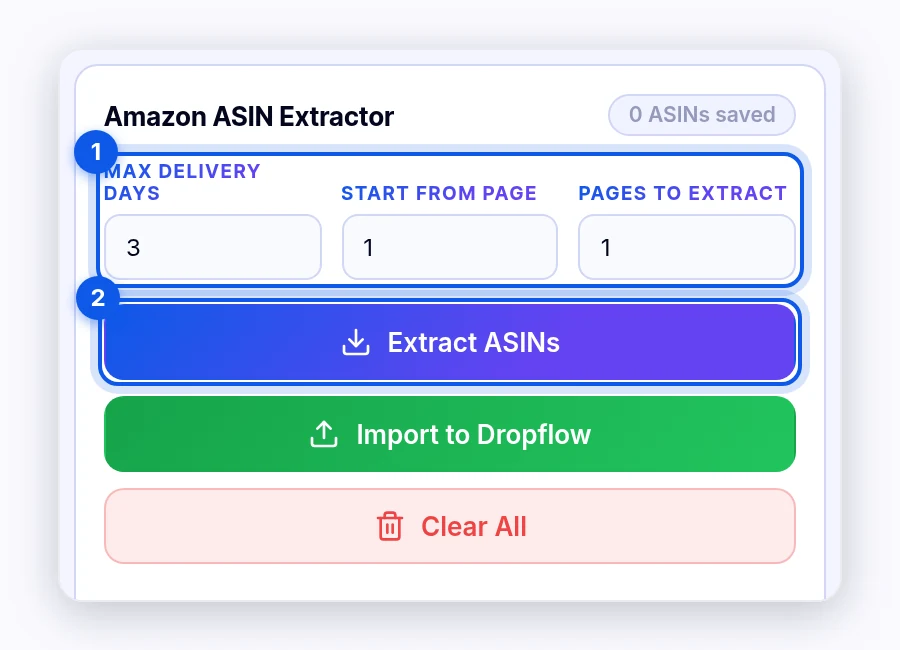
Note: Start From Page resets to 1 on purpose. A remembered page could silently skip the first pages of your next, unrelated search.
How to import ASINs to Flow Lister
- Extract ASINs first.
- Click Import to Dropflow.
- The Poshmark Bulk Lister (Flow Lister for Poshmark) opens, or comes to the front if it's already open. Your ASINs appear as Amazon links.
- Continue in Flow Lister. See Flow Lister for Poshmark.
To remove all saved ASINs, click Clear All. You'll see "All ASINs cleared."
How to add one product from its Amazon page
- Open an Amazon product page.
- Click Add to AI Optimizer on the page.
- You'll see "✓ ASIN … added to AI Optimizer queue." The button changes to Already Added.
The product waits in the queue until you open Flow Lister for Poshmark.
How to use the Amazon Product Scraper
- In the ASIN Manager tab, click Extract Amazon Product Info. The Amazon Product Scraper opens in a new tab.
- Paste Amazon product links in Amazon Product Links, one per line.
- Click Validate to check them. You'll see the valid and invalid counts.
- Set the options in Scraping Controls (see the table below).
- Click Start Scraping.
- Watch Progress: Processed, Successful, Failed, and Remaining.
- Use Pause, Continue, or Stop as needed.
- Click any product under Scraped Products to see its details.
| Setting | Default | What it does |
|---|---|---|
| Start From | Item # 1 | Starts at this link in your list. |
| Max Links | Unlimited | Stops after this many links. Leave empty for unlimited. |
| Enable Variation Filtering | off | Filters product variations by the two settings below. |
| Max Price Diff (%) | 10 | Largest price difference allowed between variations. |
| Max Delivery Days | 4 | Longest delivery time allowed for a variation. |
| Parallel Scrapes | 3 | How many links run at once, from 1 (Slow) to 10 (Fast). Higher counts may cause glitches on slower computers. |
Your session saves automatically.
How to export scraped products
- Export CSV: Downloads a spreadsheet file.
- Export JSON: Downloads a data file.
- Export to Dropflow: Saves the products to your DropFlowLister account and opens the AI optimization page on the DropFlowLister website. You must be signed in.
- Clear Data: Removes all scraped products from the page.
Tip: Lower Parallel Scrapes if Amazon starts showing errors or checks. Amazon sets how fast it allows pages to load, not DropFlowLister.
Related articles
Still stuck? Chat with us.
See ASIN Manager troubleshooting or email contact@dropflowlister.com with a screenshot of the popup or scraper page.