
DropFlowLister web app: connect, send products, and resume bulk jobs
Learn how to use the extension with the DropFlowLister website to load scraped products, resume bulk listing jobs, and check your access.
On this page
DropFlowLister has a website (the web app) as well as the browser extension. The extension runs on the DropFlowLister website to pass data back and forth. For example, it can load products you scraped with the extension into the site's AI optimization page.
Key points
- Same account: The web app and the extension use the same DropFlowLister account.
- Sign in on both: Sign in at
https://app.dropflowlister.com/auth, and in the extension popup. - Product hand-off: Products you send with Export to Dropflow in the Amazon Product Scraper are uploaded to your account and loaded on the site's AI optimization page.
- Resume prompts: If a bulk listing job started from the website didn't finish, the site asks whether to resume it.
- Access checks: The website shows a lock message if you're signed out or your plan isn't active.
Before you start
- You have a DropFlowLister account and an active plan.
- The extension is installed and you're signed in to it.
- You're using the same Chrome profile for the website and the extension.
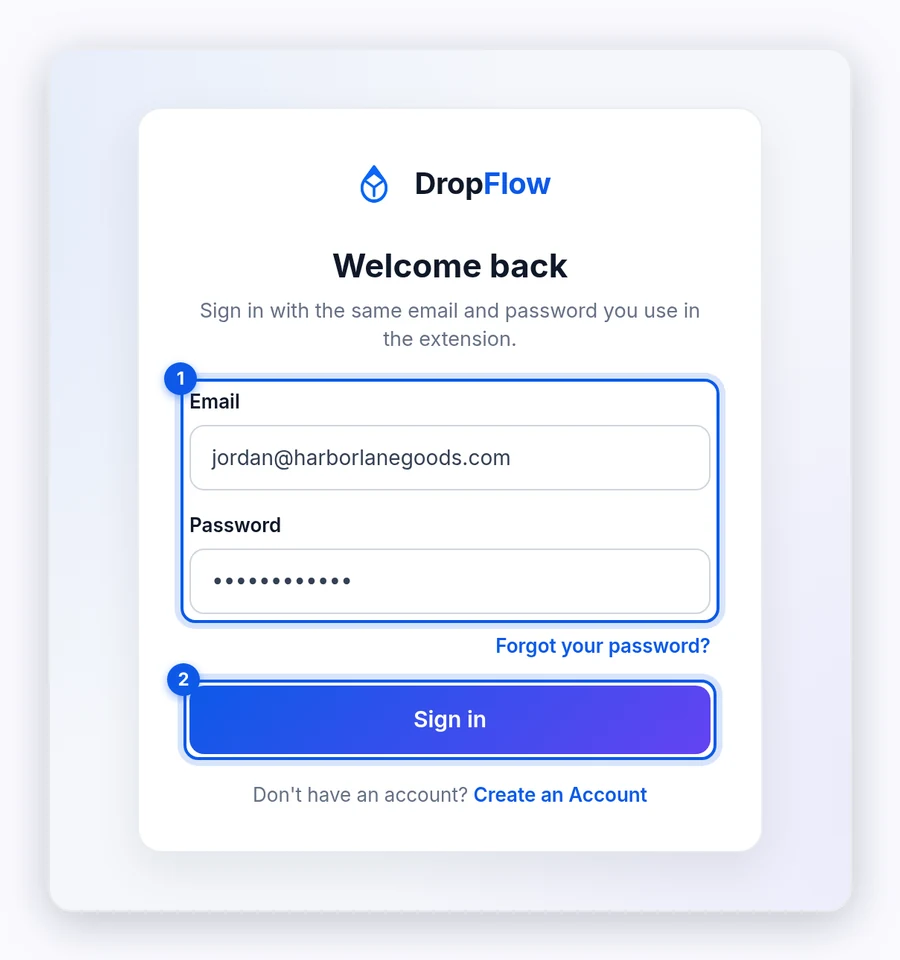
How to sign in to the web app
To sign in:
- Go to
https://app.dropflowlister.com/auth. - Sign in with the same email and password you use in the extension.
The popup's Create an Account and Forgot your password? links open this same page.
How to send scraped products to the web app
To send products:
- Open the Amazon Product Scraper from the ASIN Manager with Extract Amazon Product Info.
- Scrape your products.
- Click Export to Dropflow.
- Wait while the products upload to your account.
- The DropFlowLister AI optimization page opens and loads your products.
While products load, the page shows steps such as "Connecting to API...", "Fetching products...", and "Preparing products...".
Note: The AI optimization page only loads your products when your plan is active. If it isn't, you'll see "🔒 Subscription Required".
How to resume an unfinished bulk job
If a bulk listing job started from the website stopped partway, the website shows Resume Bulk Listing? with "You have incomplete bulk listing jobs."
To decide:
- Click Resume Listing to continue from where the job stopped.
- Or click Clear Jobs to throw away the unfinished job.
Important: Clear Jobs removes the unfinished job. You'd have to start it again from the website.
Access messages on the website
| Message | What it means | What to do |
|---|---|---|
| "🔐 Authentication Required" | You're not signed in to the extension. | Sign in through the extension popup, then reload the page. |
| "🔒 Subscription Required" | Your plan isn't active. | Click Upgrade Now, or see Billing and access errors. |
Tips and limits
- Start bulk jobs in the extension. Bulk listing starts from the extension, so use Flow Lister. If you click Start under Bulk Processing in the popup, it says "Please initiate bulk processing from the Dropflow website". Use Flow Lister instead.
- ASIN bulk import: ASINs from the ASIN Manager go to the Poshmark Flow Lister in the extension.
- Use one Chrome profile. The extension only sees the website in the profile where it's installed.
Related articles
Still stuck? Chat with us.
See DropFlowLister web app: troubleshooting, or email contact@dropflowlister.com.