
VeRO and restricted words: protect listings, refresh lists, and suggest brands
Learn how to use VeRO brand and keyword lists, restricted words, and skip keywords to keep risky products off your listings.
On this page
VeRO is eBay's Verified Rights Owner program. Brands in it can ask eBay to remove listings that use their name without permission. DropFlowLister keeps a list of protected brands and keywords and checks products against it before you list. You can also add your own words to skip.
Key points
- Four lists: VERO Brands and VERO Keywords come from the DropFlowLister server. Restricted words and Skip Keywords are your own lists.
- Automatic updates: The VeRO lists refresh after you sign in, every hour, and when you click Refresh from Server.
- Edits don't last: You can edit the VeRO lists, but each refresh replaces them with the server list.
- Unbranded products are checked too: When a product's brand is "Generic", "Unbranded", or missing, Flow Lister checks the title against the VeRO brand list.
- Not a guarantee: These lists lower your risk, but they can't promise a listing won't be reported.
Before you start
- You're signed in to DropFlowLister. The VeRO lists load after you sign in.
- Know which tool you're using: Flow Lister, Single Lister, or Profit Hunter.
How the four lists work
| List | Where you see it | What it does | Who controls it |
|---|---|---|---|
| VERO Brands | Flow Lister, Profit Hunter | Skips products from protected brands. Shared between Flow Lister and Profit Hunter. | DropFlowLister server (edits are temporary) |
| VERO Keywords | Flow Lister | Skips products whose title has a protected keyword. Flow Lister and Single Lister enforce it. | DropFlowLister server (edits are temporary) |
| Restricted words | Profit Hunter | Words you don't want in product titles. Flow Lister can use them too. | You |
| Skip Keywords | Each Flow Lister | Products whose title has any of these words are skipped. | You |
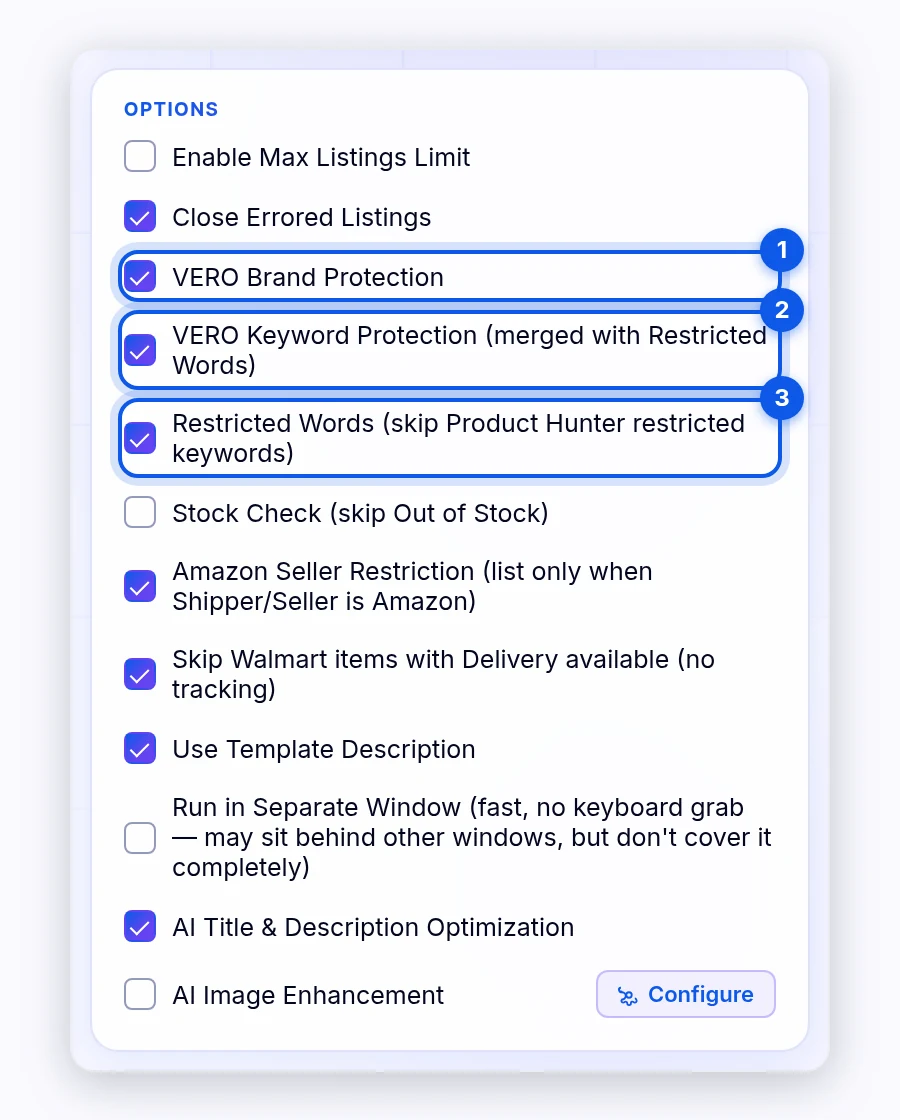
How to turn on protection in Flow Lister for eBay
To turn it on:
- Open the eBay Flow Lister.
- In Options, turn on VERO Brand Protection.
- Turn on VERO Keyword Protection (merged with Restricted Words).
- Turn on Restricted Words (skip Product Hunter restricted keywords) to also skip your restricted words.
When a run starts, the Activity Log warns you if a protection is off or the keyword list is empty.
How to turn on protection in Profit Hunter
To turn it on:
- Open Profit Hunter.
- Under Filters, turn on VERO Brand protection.
- Turn on VERO Keyword protection.
- Add words to Restricted words, or click Load Defaults.
How the Single Lister shows VeRO
On a supplier product page, the Single Lister shows a badge next to the title:
- VeRO Safe: no protected brand found.
- VeRO Brand Detected or VeRO Keyword Detected: listing is risky.
- VeRO List Unavailable: check the brand yourself.
If you try to list a product with a VeRO match, the panel asks you to confirm with List anyway or Cancel.
Warning: Listing a VeRO-protected brand can lead to listing removal, a policy strike, account limits or suspension, or legal action from the rights owner. These actions come from the marketplace and the rights owner, not from DropFlowLister.
How to refresh the VeRO lists
To refresh by hand:
- Open Flow Lister or Profit Hunter.
- Click Refresh from Server under VERO Brands.
You'll see "VERO refreshed — N brands + M keywords…". DropFlowLister also refreshes on its own every hour.
Note: Any edits you made to VERO Brands or VERO Keywords are replaced when the list refreshes. Put words you always want blocked in Skip Keywords or Restricted words instead.
How to edit your own lists
To edit Skip Keywords:
- Open Flow Lister (eBay or Poshmark).
- Type words in Skip Keywords, one per line, for example "refurbished".
- Click Load Defaults to add the built-in list, or Clear to empty it.
To edit Restricted words:
- Open Profit Hunter.
- Type words in Restricted words, or click Load Defaults.
How to suggest a brand or keyword
If you find a protected brand or keyword that's missing:
- Click Report in the popup header.
- Pick VERO Suggestion or Keyword Suggestion.
- Fill in the form. A VeRO suggestion asks for an Amazon product link, the brand keywords, and a proof image up to 10 MB.
- Submit it.
You'll see "VERO suggestion submitted — pending admin review." The team reviews each suggestion, and you'll see the status update.
Tips and limits
- Keep protection on unless you're sure you have the right to sell a brand.
- Check new brands yourself. Rights owners join VeRO over time, so no list is ever complete.
- Other DropFlowLister tools use the VeRO lists too, including the Listing Sanitizer in Boost My Listings and Flow Tracker.
- Poshmark: The VeRO lists apply to Poshmark listings too.
Related articles
Still stuck? Chat with us.
See VeRO and restricted words: troubleshooting, or email contact@dropflowlister.com.