
Single Lister: check, price, and list one product from a supplier page
Learn how to use the Single Lister panel to check a product, set your price, and list it with Simple list, Flowlist, or Snipelist.
On this page
The Single Lister is a panel DropFlowLister adds to supplier product pages. It lets you check one product, set your title and price, and list it to a marketplace without opening Flow Lister. Today the Single Lister lists to eBay.
Key points
- Where it shows: On product pages from Amazon (amazon.com and amazon.ca), AliExpress (.com and .us), and Walmart.com.
- Three ways to list: Simple list (1) uses your title and price, Flowlist (1) adds AI optimization, and Snipelist (1) copies an existing eBay listing's title and price.
- Each listing uses 1 credit: Simple list, Flowlist, and Snipelist each use 1 credit. Generate Title is free.
- Status checks: The panel checks the seller, availability, delivery time, Prime, CE marking, restricted words, and VeRO before you list.
- Shared settings: Markup, templates, and VeRO lists come from your Flow Lister settings.
Before you start
- You're signed in to DropFlowLister with an active plan and credits.
- You're signed in to your eBay seller account in the same browser.
- You have a store and an image template. See Stores.
- If you just installed or updated DropFlowLister, refresh the product page (F5).
How to open the Single Lister
To open it:
- Go to a product page on a supported supplier site, such as an Amazon
/dp/page. - Wait for the Single Lister panel to appear on the page.
- Click the settings gear in the panel to open your Flow Lister settings, if you need to change markup or templates.
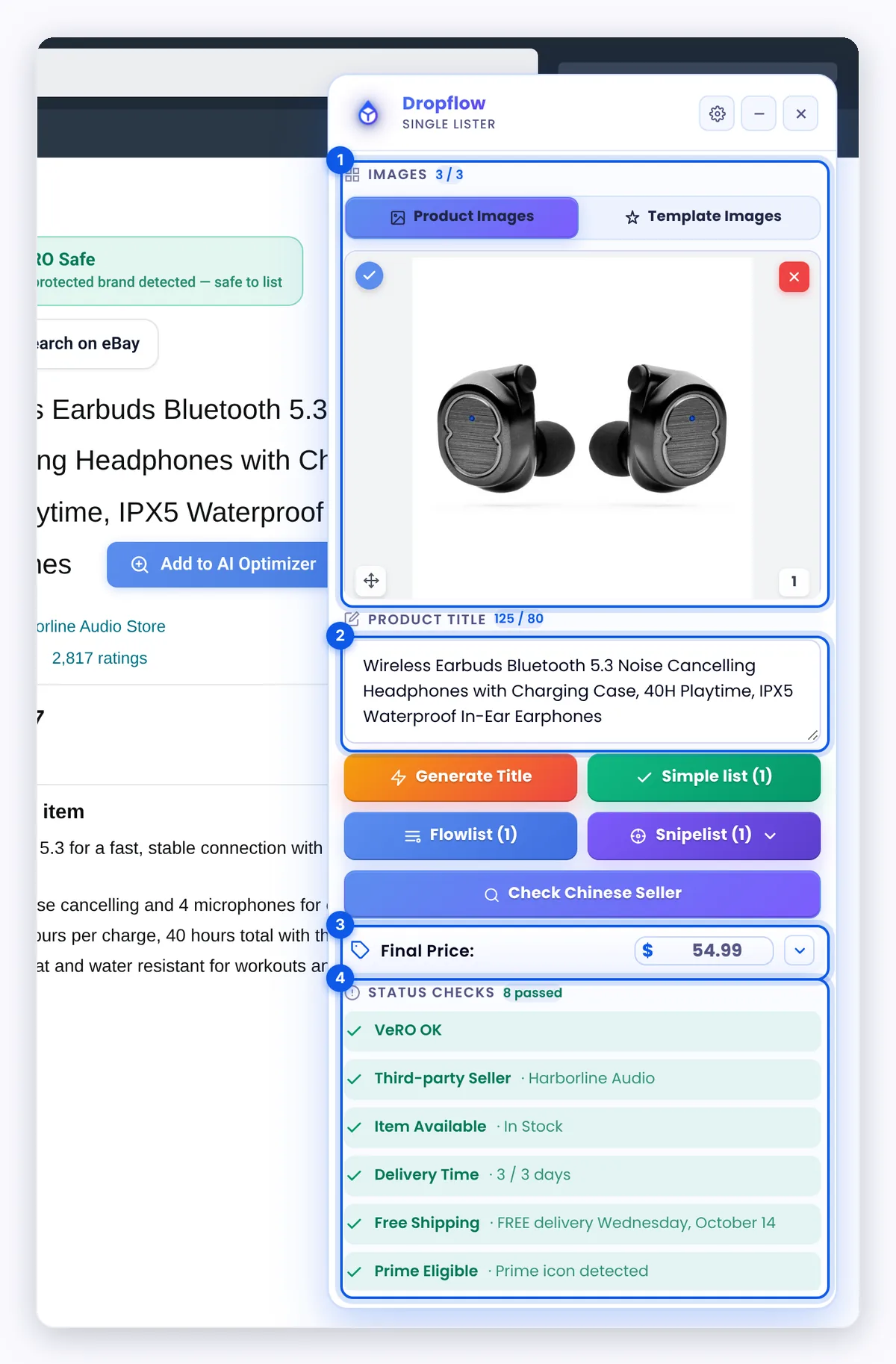
How to read the status checks
The Status Checks card shows passes and errors at a glance, for example "1 error · 6 passed". Click Show more to see every check.
| Check | What it looks at |
|---|---|
| Amazon Seller | Whether Amazon sells and ships the item ("Sold by Amazon") or a third party does ("Third-party Seller"). |
| Item Availability | Whether there's a buy button ("Item Available") or not ("Item Unavailable"). |
| Delivery Time | The delivery estimate versus your limit, for example "3 / 3 days". Over the limit shows "Delivery Too Slow". |
| Prime Eligibility | Whether a Prime icon is present. |
| CE Marking | Whether the page mentions CE marking (useful for EU sales). |
| Restricted Words | Whether the title has a word from your restricted list. |
| ASIN Valid / ASIN Mismatch | Whether the product ID on the page matches the link. |
| Chinese Seller | Whether the seller profile shows signs of a China-based seller. |
To change the delivery limit, open the popup and go to eBay Settings → Amazon (Single Lister) → Max Delivery Time (days). The default is 3 days, and the max is 60.
VeRO badge
Next to the title, a badge shows one of these:
- VeRO Safe: "No protected brand detected — safe to list".
- VeRO Brand Detected or VeRO Keyword Detected: "Listing this product is risky".
- VeRO List Unavailable: "Verify manually before listing".
Click Search on eBay to look up the product on eBay. Click Check Chinese Seller to run the seller check again.
How to set your images and price
To set images:
- Use the Product Images and Template Images tabs to see both versions.
- Drag an image to reorder it.
- Click the remove icon to drop an image, or the restore icon to bring it back.
To set your price:
- Type your Markup (%).
- Check the Calculated Price, Final Price, and Profit.
The title box shows a counter out of 80, which is eBay's title length limit.
How to list with Simple list
Simple list uses your own title and price, with no AI. It uses 1 credit.
To list:
- Type or edit the title. Click Generate Title to get a free AI-written title from your base title.
- Check the price.
- Click Simple list (1).
- Wait for "✅ Product successfully listed to eBay!".
How to list with Flowlist
Flowlist uses AI to write the title, description, and item specifics. It uses 1 credit.
To list:
- Click Flowlist (1).
- Wait while the panel scrapes the product and optimizes it with AI.
- Wait for the success message.
How to list with Snipelist
Snipelist copies the title and price of an existing eBay listing, then lowers the price slightly so you undercut that seller. It uses 1 credit.
To list:
- Click Snipelist (1) to open its section.
- Enter an eBay item number, such as 123456789, or paste the JSON that the eBay search icon Snipe the Title And Price copied.
- Set Sniper Price Markdown (cents). The default is 0.10, which takes 10 cents off the eBay price.
- Click Fetch.
- Check the title and price, and edit them if needed.
- Click List.
Tip: On eBay search results, use the Snipe the Title And Price, Saves this to Clipboard icon, then paste the result into Snipelist. See eBay search and item page tools.
What happens when VeRO is detected
If the title has a VeRO brand or keyword, the panel asks you to confirm before you list. It warns about immediate listing removal, policy strikes, account limits or suspension, and legal action from the rights owner. Click Cancel to stop, or List anyway to go ahead.
Warning: Listing a VeRO-protected brand can get your listing removed and your marketplace account limited. Only click List anyway if you're sure you have the right to sell that brand.
Tips and limits
- Drafts are refunded: If eBay saves the listing as a draft because item specifics are missing, your credit is refunded. That rule comes from eBay.
- Long listings: eBay listings can take several minutes. If one runs past 13 minutes, the panel tells you.
- Duplicates: The panel stops you from listing a product that's already in your store.
- Supported pages: Amazon, AliExpress, and Walmart product pages. Target, Bed Bath & Beyond, and Home Depot aren't supported yet.
Related articles
Still stuck? Chat with us.
See Single Lister: troubleshooting, or email contact@dropflowlister.com with a screenshot and the product link.