
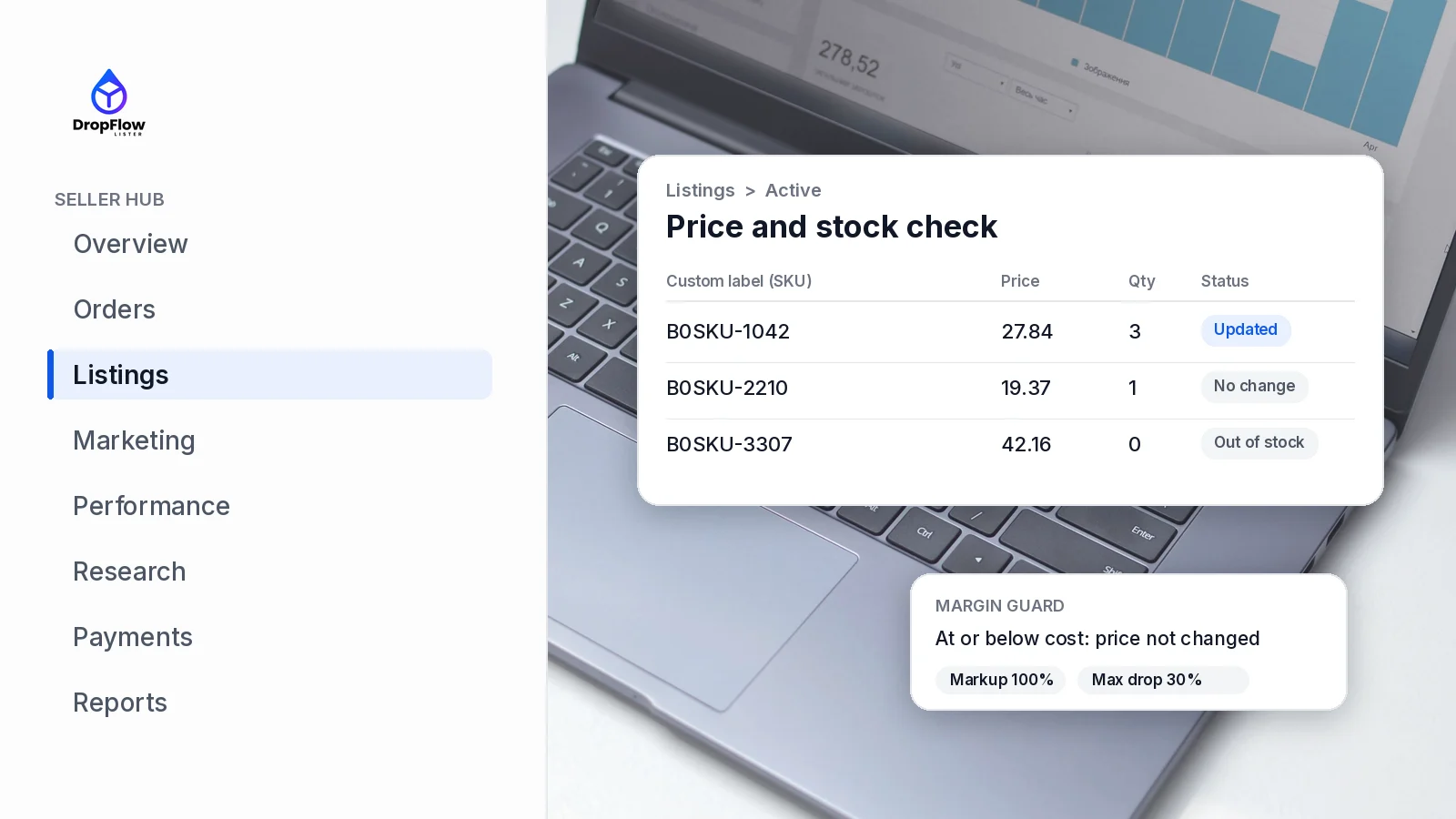
eBay Seller Hub is the free dashboard where you run your eBay business, from orders and listings to payouts and reports. This guide walks through every tab, shows you how to set up your listings view, and gives you a 10-minute daily routine. It is written for new sellers and for dropshippers who manage dozens or thousands of listings. If you are just getting started, read our guide on how to start dropshipping on eBay first. Every eBay fact below was checked against eBay’s own help pages on November 1, 2026.
At the end, we also show how to keep prices and stock up to date inside Seller Hub with price and stock tracking from DropFlowLister, the dropshipping automation software for eBay and Poshmark.
TL;DR: What Do You Need to Know About eBay Seller Hub?
- What it is: eBay’s free selling dashboard. It brings all of eBay’s selling tools into one place.
- Who can use it: any seller who has made at least one sale.
- Where you’ll spend your time: Overview for today’s tasks, then Orders, Listings and Performance.
- First setup step: show the Custom label (SKU), Sold quantity, Views and Start date columns on your Active listings page.
- Best research tool: Product research on the Research tab, with up to 3 years of eBay sales data.
- Automation: DropFlowLister can check supplier prices and stock and edit them right on your Active listings page. Plans start at $19.99/mo for Poshmark and $39/mo for eBay. See DropFlowLister pricing.
What Is eBay Seller Hub?
eBay Seller Hub is eBay’s central page for managing a selling business. According to eBay’s Seller Hub help page, it is free to use and “consolidates all our selling tools into one location.” In other words, you manage orders, listings, marketing, performance, payouts and reports from one set of tabs.
Seller Hub also gives you data and recommendations. For example, the Performance tab shows your sales, costs, traffic and seller level, while the Payments tab shows past and upcoming payouts and any funds on hold.
Is Seller Hub free?
Yes. eBay says Seller Hub is free to use. Some tools inside it, such as certain Marketing features, are only available to eBay Store subscribers, as eBay notes on the same help page.
Who can use Seller Hub?
You need at least one sale before you can use Seller Hub, per eBay help. So if you are brand new, list a few items and make your first sale first. After that, the dashboard opens up.
How Do You Access Seller Hub?
The quickest route is the short address ebay.com/sh. Then sign in with your eBay username and password, as eBay’s help page describes. If you are signed out, the address opens eBay’s Seller Hub landing page first.
A few habits make access faster:
- Bookmark it. Save ebay.com/sh in your browser bar so you skip My eBay entirely.
- Bookmark your busiest pages too. For instance, save separate bookmarks for Orders and for Listings, then Active.
- Use Team access for helpers. eBay’s Product research help page notes that Team access lets other members work on your behalf without sharing your password.
eBay Seller Hub Tabs Explained
eBay lists ten tabs in its help article: Overview, Orders, Listings, Marketing, Advertising, Store, Performance, Research, Payments and Reports. Here is what each one does and when to use it.
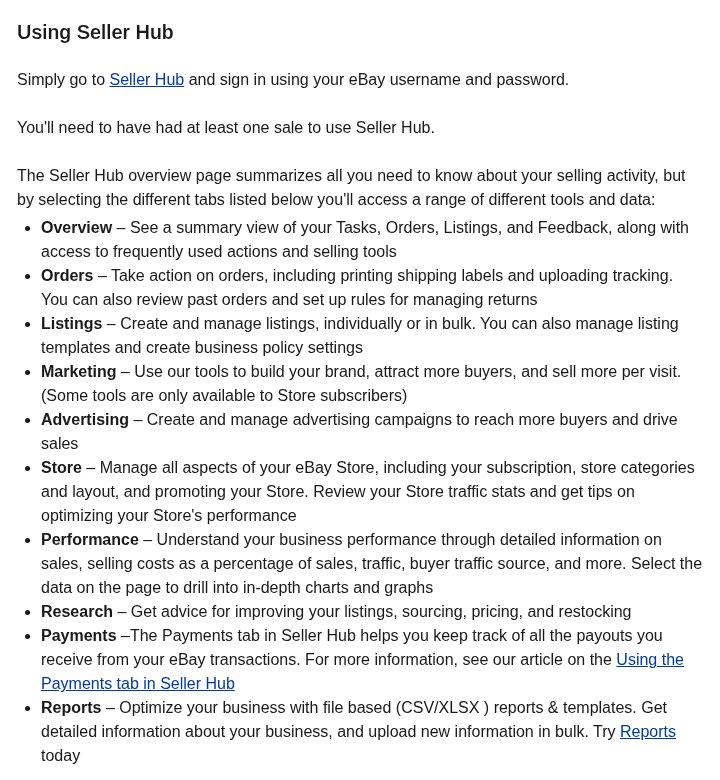
Source: eBay Help, Seller Hub, captured November 1, 2026.
Overview tab (the eBay overview page)
The eBay overview page is your home screen. It shows a summary of your Tasks, Orders, Listings and Feedback, plus shortcuts to the actions and tools you use most. Use it for: a quick morning check of what needs attention today.
Orders tab
The Orders tab is where you act on sales. You can print shipping labels, add tracking, review past orders and set up rules for returns. In addition, eBay’s help page on sold items says you can search orders by buyer, order status and time frame, going back up to 2 years. Use it for: shipping on time and finding any past order.
Listings tab
The Listings tab lets you create and manage listings, one at a time or in bulk. It also holds your listing templates and business policy settings. Use it for: editing prices and quantities, fixing weak listings and keeping your catalog clean.
Marketing and Advertising tabs
Marketing covers tools that help you build your brand, attract buyers and sell more per visit. Some of these tools need a Store subscription. Advertising is where you create and manage campaigns, such as Promoted Listings. If you are deciding on ads, read whether eBay Promoted Listings are worth it first. Use it for: promotions and ad campaigns.
Store tab
If you subscribe to an eBay Store, this tab manages your subscription, store categories, layout and promotion. It also shows Store traffic stats and tips. Because a Store changes your listing costs, our eBay insertion fee calculator helps you compare plans. Use it for: Store settings and Store traffic.
Performance tab
Performance explains how your business is doing. It covers sales, selling costs as a percentage of sales, traffic, buyer traffic source and more, and you can click into charts for detail. It is also where you monitor your seller level. To understand the numbers that matter most, see our guides to eBay seller levels and the eBay late shipment rate. Use it for: a weekly health check.
Research tab
The Research tab gives advice on listings, sourcing, pricing and restocking. Its main tool is Product research, which DropFlowLister’s eBay search tools guide calls eBay’s free Product Research (Terapeak). According to eBay’s Product research help, it covers the last 3 years of eBay sales data. That includes average sales price, sold price range, shipping costs and sell-through rate. Furthermore, results show the actual price an item sold for, even when a Best Offer was accepted. Use it for: deciding what to list and at what price. For a full walkthrough of sold search and Product research, see how to see sold items on eBay.
Payments tab
The Payments tab tracks the payouts you receive from eBay sales. You can view previous payouts, see when the next one arrives and check whether any funds are on hold. Use it for: matching payouts to your bank deposits.
Reports tab
Reports offers file-based reports and templates in CSV or XLSX format. You can download detailed business data and also upload new information in bulk. Use it for: bulk updates and bookkeeping exports.
How Do You Set Up Your Seller Hub Listings View?
Most sellers never change the default columns on Listings, then Active. However, a few extra columns make daily work much easier. Use the Customize option on that page to add them.
Which columns should you add?
| Column | Why it helps |
|---|---|
| Custom label (SKU) | Ties each listing to its source product or bin location. |
| Sold quantity | Shows which listings actually sell, so you can restock or reprice them. |
| Views | Shows which listings get seen. Low views often point to a title or photo problem. |
| Start date | Shows how long a listing has been live, which helps you spot stale items. |
These are also the four columns that DropFlowLister’s Seller Hub Price Tracker guide asks you to show, because its tools read them.
Why does the Custom label (SKU) matter so much?
The SKU is the one field that links a listing to where it comes from. For a reseller, that might be a shelf number. For a dropshipper, it is usually the supplier product ID. As a result, a clean SKU column lets you sort, search and audit your catalog quickly. It also lets automation tools match each listing to the right supplier product.
Which Seller Hub Reports Should You Download?
Seller Hub has several reports, and each one answers a different question. Here is how to choose, based on eBay’s help page.
| Report | Where to find it | Use it for |
|---|---|---|
| Orders report (CSV) | Orders, Manage orders, then Download report | Every order in your current results, including how much tax eBay collected and remitted. |
| Sales and selling costs report | Performance, Sales section, then Generate Report | Sales by period, Promoted Listings share, and costs from eBay fees and shipping labels. |
| Listings sales report | Performance, Sales section, then Download listings sales report | Sales insights for individual listings. |
| Reports tab files (CSV or XLSX) | Reports tab | Detailed business data, plus templates for bulk uploads. |
To download only some orders, tick the boxes next to them and choose More, then Download selected. Also, if you want to check what a single sale cost you, our eBay fee calculator does the math in seconds.
What Is a Good 10-Minute Daily Seller Hub Routine for Dropshippers?
A short, fixed routine keeps small problems from becoming defects. Here is one that fits into 10 minutes:
- Start on Overview. Clear the Tasks list first, since it shows what eBay wants you to handle today.
- Open Orders, awaiting shipment. Place or confirm each supplier order, then add tracking as soon as you have it.
- Check ship-by dates. Anything close to its deadline goes to the top of your list, because late shipments hurt your seller level.
- Answer messages and returns. Next, reply to buyers and open return requests. If you use DropFlowLister, automated buyer messages work on eBay and Poshmark.
- Scan Listings, Active. Then sort by Sold quantity and Views, and fix anything with a price or stock problem.
- Once a week, open Performance. Finally, review sales, selling costs and your seller level.
For a deeper look at keeping your account clean at scale, see how to avoid eBay defects when dropshipping at scale. If a supplier runs out, our guide to the eBay out-of-stock option explains how to keep a listing alive at zero quantity.
How Do You Automate Price and Stock Updates in eBay Seller Hub?
Step 5 of the routine is the hardest part when you have hundreds of listings. Supplier prices and stock change all the time, and checking each one by hand does not scale. That is where the DropFlow panel helps.
What does the DropFlow Seller Hub panel do?
Once you have an active DropFlowLister plan, a DropFlow panel appears on your Seller Hub Listings, Active page. According to the Seller Hub Price Tracker guide, it has two tools:
- Price Tracker checks each listing’s supplier product on Amazon, AliExpress or Walmart, matched by the Custom label (SKU). Across those suppliers, DropFlowLister gives you access to 500M+ products. It then edits price and quantity right in Seller Hub, with no CSV needed.
- Purger ends listings that sell poorly, based on rules you set.
With Auto run mode on, the tracker moves page by page. When it reaches the end, it loops back to page 1 and starts again, so checks stay continuous while the tab is open. Each row gets a status badge, such as “Price changed”, so you can see what happened.
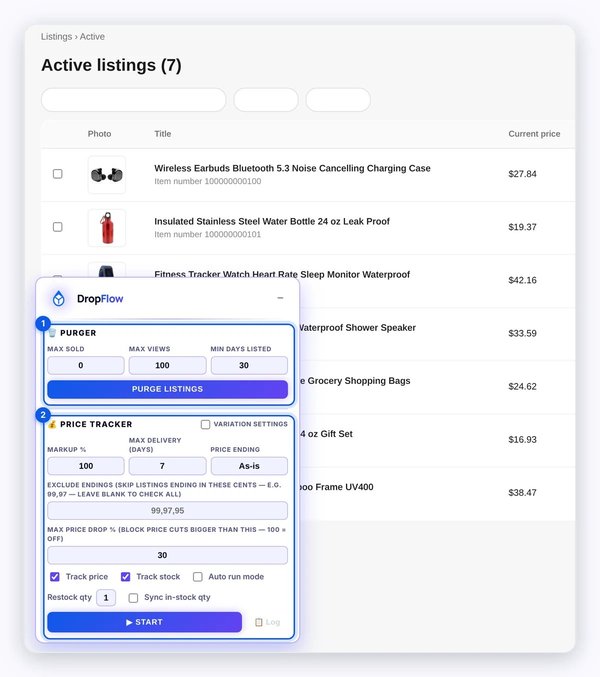
Source: DropFlowLister Help Center, Seller Hub Price Tracker, captured November 1, 2026.
To fill your Active listings in the first place, Flow Lister lists supplier products to eBay in bulk. Its page reports 3.4M+ listings created and a 99.4% publish success rate.
Which settings protect your margin?
| Setting | Default | What it does |
|---|---|---|
| Markup % | 100 | Profit added to the supplier cost. |
| Max Delivery (days) | 7 | Items that take longer get quantity 0. |
| Price Ending | As-is | Makes new prices end in .99 down to .90. |
| Max Price Drop % | 30 | Blocks price cuts bigger than this. |
| Restock qty | 1 (1 to 10) | The quantity an item gets when it comes back in stock. |
There is also a built-in price guard. If a new price would be at or below your supplier cost, the row shows “AT COST” or “BELOW COST” and the price is not changed. In addition, Variation settings let you set a markup for each supplier or by cost band. Every change goes into a log that you can export as a CSV, up to 100,000 entries.
How do you end low performers with the Purger?
The Purger ends listings that match all the rules you fill in. By default, that means listings with 0 sales, 100 views or fewer, and at least 30 days live. It sorts your listings oldest first, then ends matching rows with eBay’s own End listings action. Ended listings are not relisted, so set your numbers carefully. For more on running the whole catalog this way, see our guide to AI price tracking for eBay dropshipping.
eBay Seller Hub FAQ
Is eBay Seller Hub free?
Yes. eBay says Seller Hub is free to use. However, some Marketing tools are only available to eBay Store subscribers.
Why can’t I access sellers hub on eBay?
The most common reason is that you have not made a sale yet. eBay requires at least one sale before you can use Seller Hub.
What is the difference between My eBay and Seller Hub?
Both show your sold items for the last 2 years. Seller Hub, however, adds the selling tools: bulk listing management, marketing, performance data, payouts and reports.
How far back can I see orders in Seller Hub?
Up to 2 years. On the Orders tab, choose a time frame and filter by order status, such as awaiting payment or awaiting feedback.
Where is Terapeak in Seller Hub?
It sits on the Research tab as Product research. It covers up to 3 years of eBay sales data, and eBay says it is also available in its mobile apps.
Can I edit prices in bulk in Seller Hub?
Yes. The Listings tab supports editing in bulk, and the Reports tab accepts bulk uploads. For ongoing changes, a tool like DropFlowLister’s Price Tracker edits prices and stock page by page on Listings, Active.
Ready to Run Your Store From Seller Hub?
You now know what every tab does, which columns to add and which reports to pull. Start with the daily routine for a week, then automate the price and stock step once your catalog grows. See how Flow Tracker works and compare DropFlowLister plans; each plan covers one marketplace, and you can switch anytime. When you’re ready, try DropFlowLister 14 days for $1.


